Enabling Passkeys Is Not the Same as Enforcing Them

Authentication strengths, Conditional Access design, and closing the weak-fallback and device-code gaps

MFA to Passkeys in Microsoft Entra ID series · Part 3 of 7

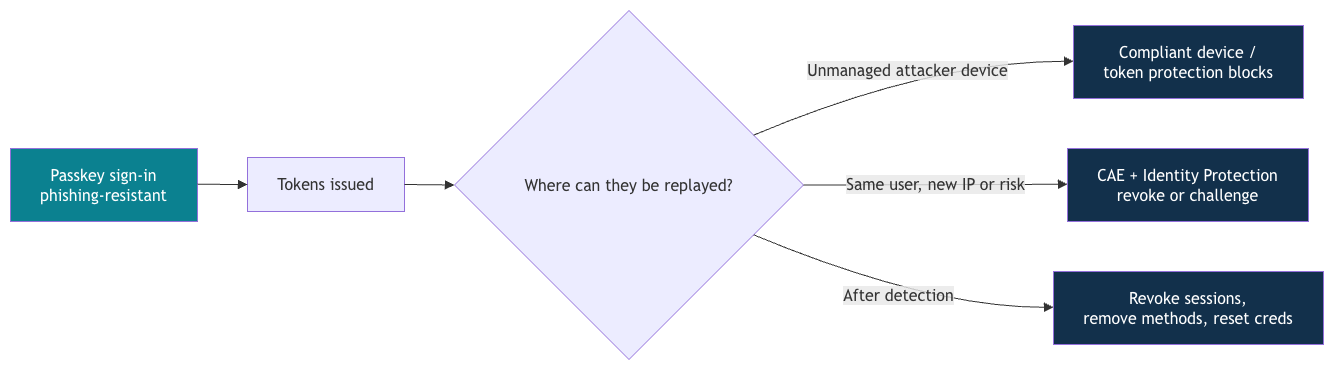
ok lets start with a scenario that plays out in real tenants. An administrator registers a shiny new FIDO2 security key. The security team marks the account as "phishing-resistant". Three months later the account is compromised through an AiTM phishing page. The attacker didn't touch the key. They sent a push notification, because push was still an acceptable way to satisfy every Conditional Access policy that applied to that account.

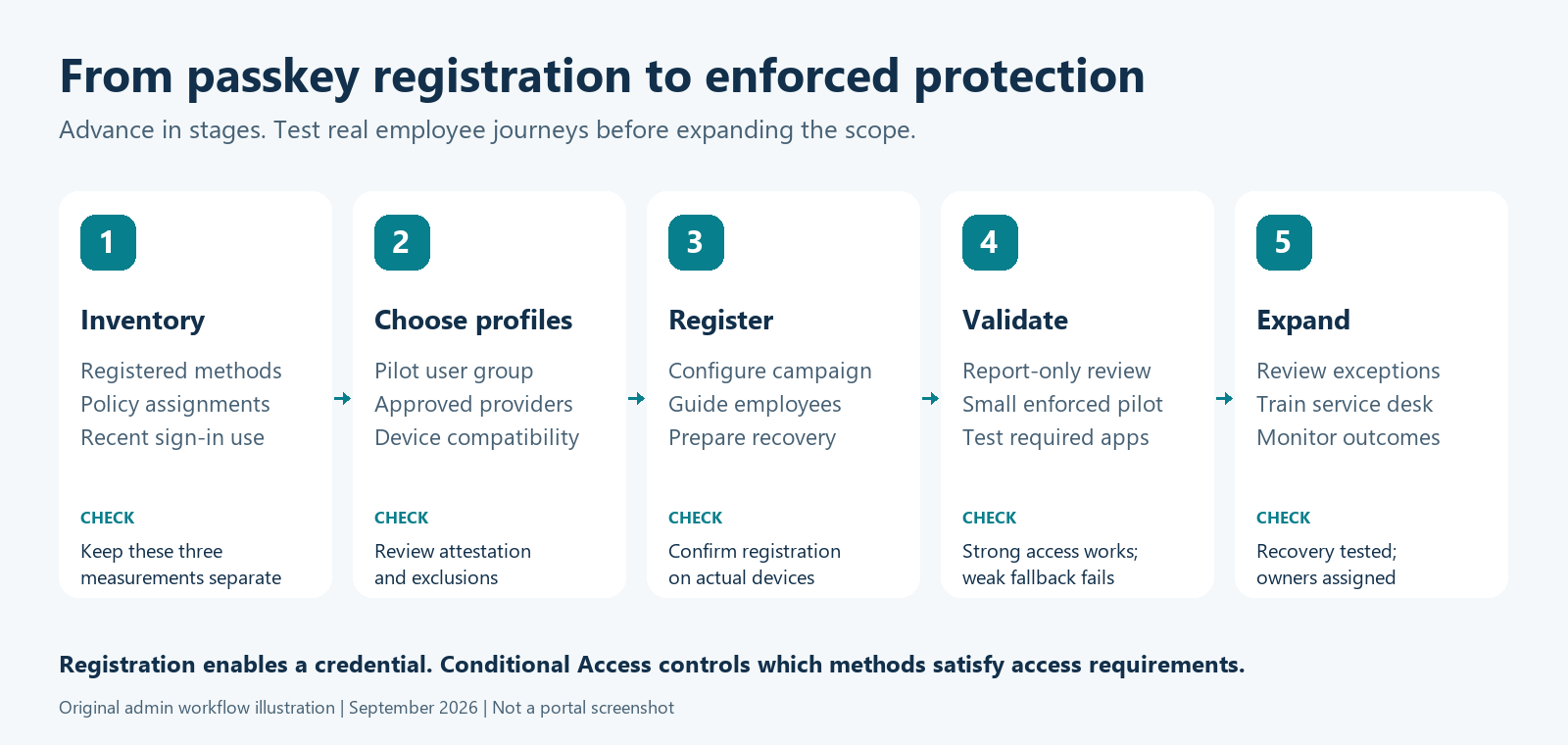
A stronger credential doesn't remove weaker paths. Entra ID has two separate policy engines, and you need both:

Engine Answers the question Where
Authentication methods policy Which methods may this user register and use at all? Entra ID → Authentication methods → Policies
Conditional Access + authentication strengths Which methods are required to reach this resource, under these conditions? Entra ID → Conditional Access

Part 2 configured the first engine. This part configures the second, and then proves it works.

Authentication strengths

An authentication strength is a named list of acceptable method combinations. A Conditional Access policy can demand a strength instead of the generic "Require multifactor authentication" grant. Entra ID has three built-in strengths, identical in every tenant and maintained by Microsoft as new methods ship:

Built-in strength ID Allowed combinations (summary)
Multifactor authentication 00000000-0000-0000-0000-000000000002 Everything below, plus password + SMS/voice/push/OATH, Temporary Access Pass, federated MFA…
Passwordless MFA 00000000-0000-0000-0000-000000000003 WHfB, FIDO2, multifactor CBA, Authenticator phone sign-in (deviceBasedPush)
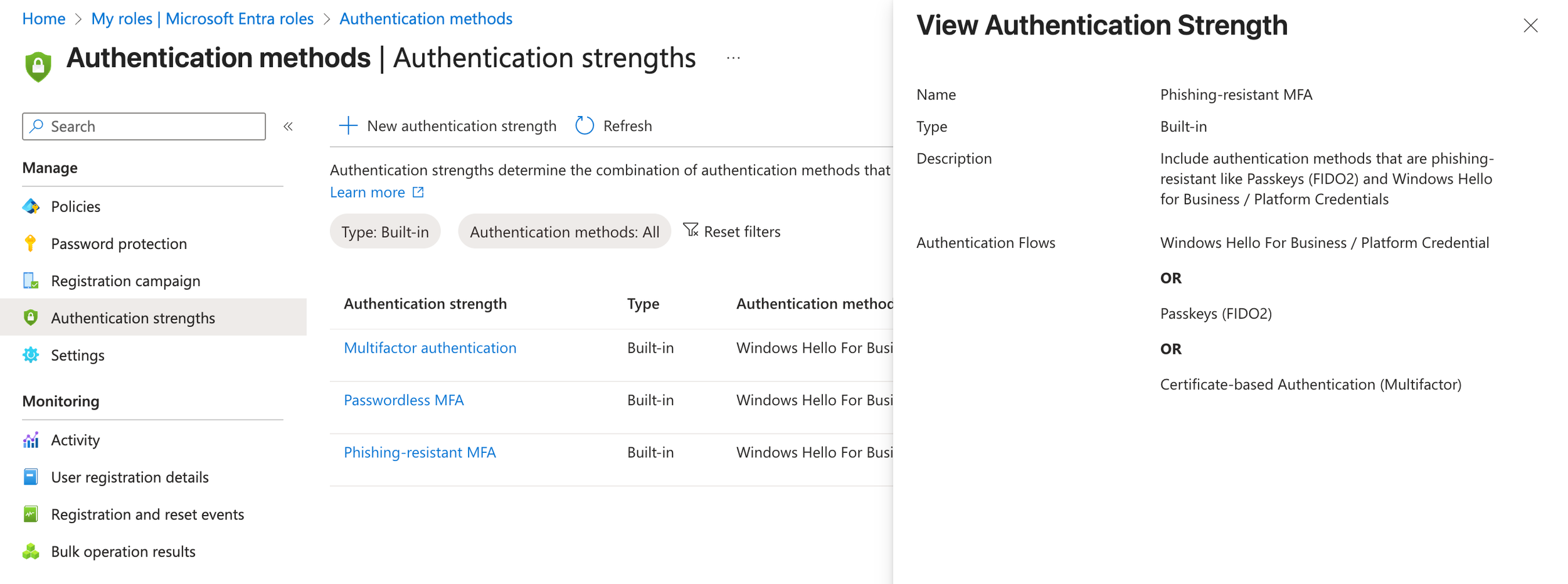
Phishing-resistant MFA 00000000-0000-0000-0000-000000000004 windowsHelloForBusiness, fido2, x509CertificateMultiFactor

Built-in phishing-resistant MFA strength definition

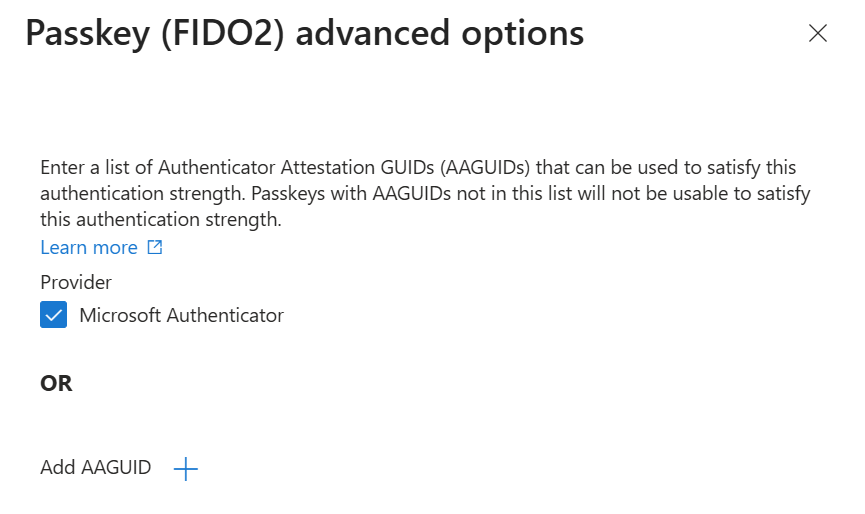
Custom strengths (up to 15 per tenant) let you go further. The most valuable use is pinning passkeys to approved models. Under Passkeys (FIDO2) → Advanced options you can list the AAGUIDs a strength accepts:

Adding an AAGUID in authentication strength advanced options

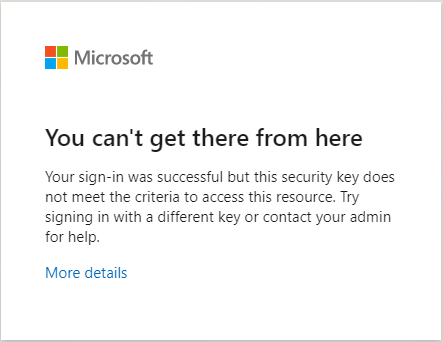
A user who signs in with a passkey outside the list sees "You can't get there from here":

Sign-in error when a passkey is not allowed by the strength

Limitations to plan around

Each item below is from Microsoft Learn: authentication strengths:

  • You can't combine Require multifactor authentication and Require authentication strength in the same policy.
  • Strengths don't restrict the first factor. Conditional Access evaluates after initial authentication. A user can still type a password first, then be asked to step up with a passkey.
  • Temporary Access Pass satisfies only the built-in MFA strength, not Passwordless or Phishing-resistant. That matters for onboarding (Part 4).
  • External authentication methods are currently incompatible with authentication strengths.
  • Known issue with sign-in frequency: users "can satisfy both requirements at two different times". A passkey sign-in yesterday plus a Windows Hello unlock today can together satisfy a one-hour sign-in frequency.
  • Only built-in directory roles are honored in Conditional Access user targeting. Administrative-unit-scoped and custom roles are not. Target admin groups if you use custom roles.
  • Microsoft Authenticator passkey registration loop: a policy requiring phishing-resistant MFA on All resources can stop users from registering an Authenticator passkey. So can policies requiring an approved client app or app protection policy, because Authenticator doesn't support app protection policies on iOS or Android. This bites hardest on BYOD phones, and the failure is easy to misdiagnose because registration touches resources beyond the Register security information user action. Part 4 has the diagnosis (Get-EptRegistrationBlock) and the targeted fix.

A reference Conditional Access design

Name policies so they sort and read well in sign-in logs. A minimal phishing-resistant rollout needs these:

Policy Users Resources Grant / condition Start state
CA010 Block device code flow All users, exclude break-glass + documented exceptions All resources Authentication flows = device code flow → Block Report-only
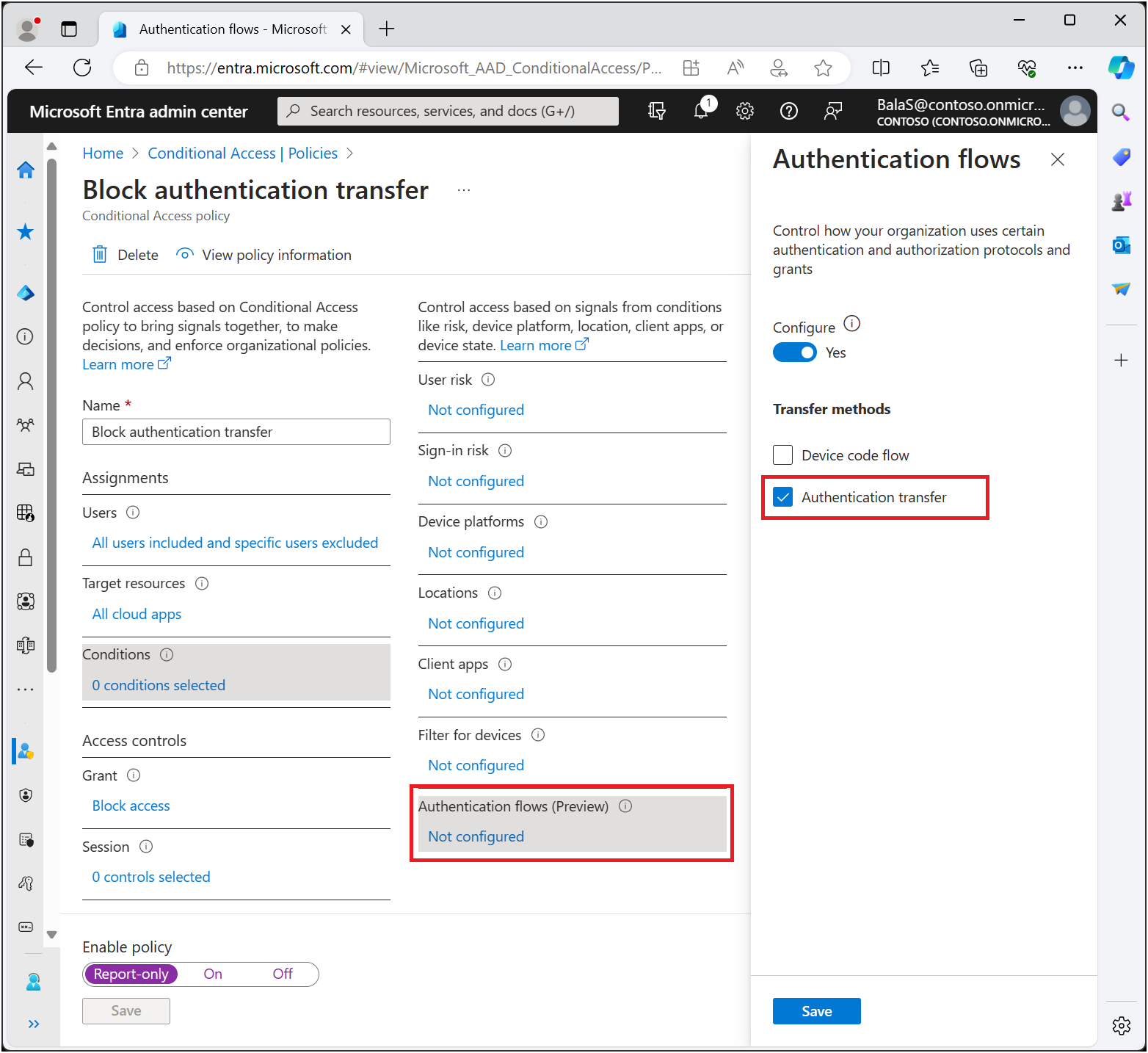
CA011 Block authentication transfer All users, exclude break-glass All resources Authentication flows = authentication transfer → Block Report-only
CA100 Admins require phishing-resistant MFA 14 privileged directory roles, exclude break-glass All resources Authentication strength = Phishing-resistant MFA (or custom Tier 0 strength) Report-only → On
CA110 Pilot require phishing-resistant MFA Pilot group(s), exclude break-glass All resources Authentication strength = Phishing-resistant MFA Report-only → On
CA120 Secure security-info registration All users, exclude guests + break-glass User action: Register security information Trusted conditions or TAP/MFA (Part 4) On (report-only isn't supported for user actions)

Microsoft's deployment guide goes further for the enforcement phase and recommends one policy per OS group (Windows, macOS, iOS, Android, Other). You can then enforce platform by platform as each passes its pilot (deployment guide).

Build the policy in the portal

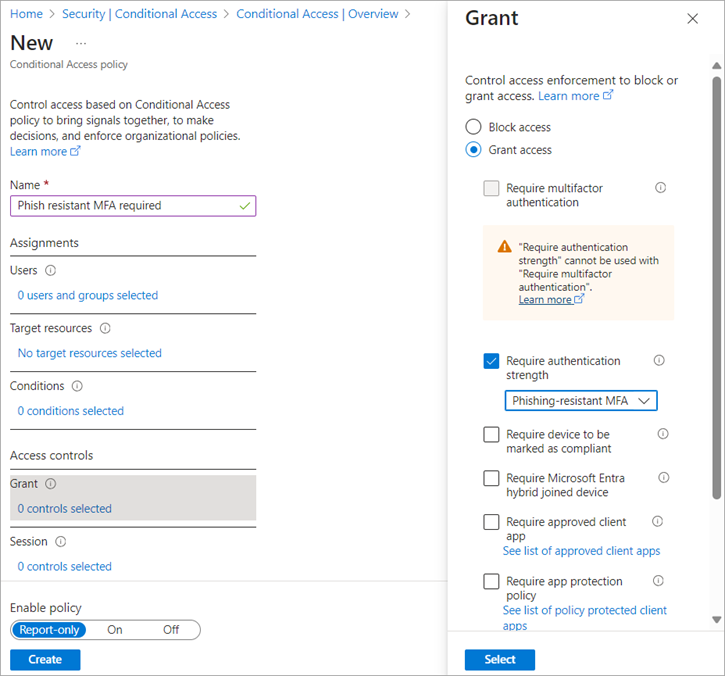
Entra ID → Conditional Access → Policies → New policy:

  1. Users: include the pilot group or the directory roles. Under Exclude, add the emergency-access group.
  2. Target resources: All resources.
  3. Grant: Grant access → Require authentication strength → Phishing-resistant MFA.
  4. Enable policy: Report-only.

Conditional Access grant control requiring an authentication strength

Microsoft also ships this as a template: Require phishing-resistant multifactor authentication for administrators (policy guide). Heed its warning: "Enabling this policy without completing this step [registering the appropriate methods] risks locking you out of your tenant."

Block device code flow

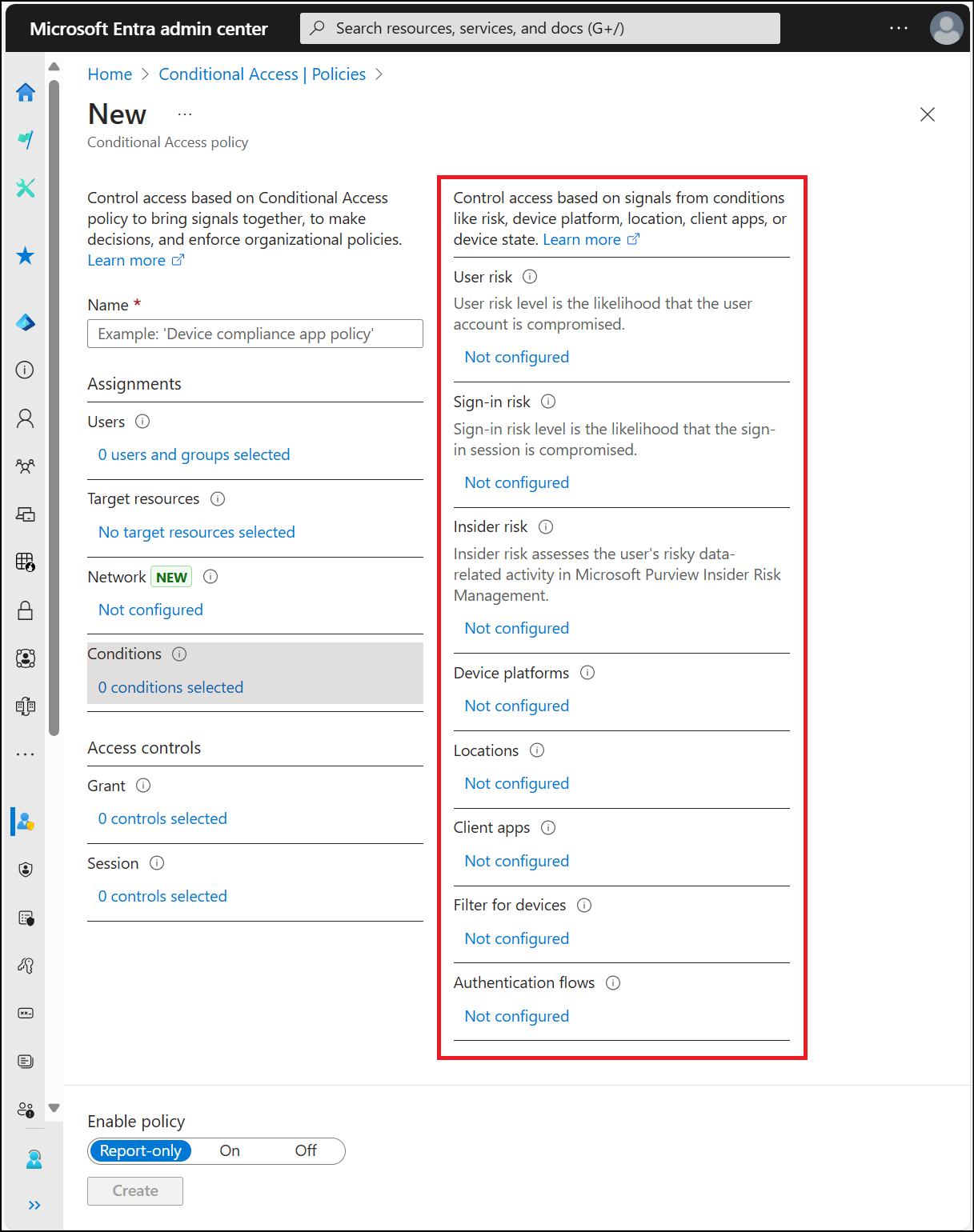
Passkeys can't stop device code phishing, because the victim signs in on the real Microsoft page. Conditional Access can. In the policy's Conditions → Authentication flows, select Device code flow and grant Block.

Conditional Access conditions including Authentication flows]

Policy blocking authentication transfer

Things to know before you enforce (concept, how-to):

  • Find your legitimate users first. Teams Rooms and other shared devices, some CLI tooling, and provisioning workflows use device code flow. For Teams devices, Microsoft recommends excluding the specific resource accounts, not broad groups (Teams devices guidance).
  • Protocol tracking follows the session. Once a session started with device code flow, later refreshes are still treated as device-code-originated and can be blocked with AADSTS530036. The sign-in log shows it under Original transfer method.
  • Device Registration Service. Authentication-flows policies targeting All resources also apply to device registration. If you register devices through device code flow, exclude the Device Registration Service app (01cb2876-7ebd-4aa4-9cc9-d28bd4d359a9).

Report-only first, always

Report-only evaluates the policy on every sign-in and records what would have happened, without blocking anyone. Review it in the sign-in log's Report-only tab or in the Policy impact view (preview, Security Reader or higher):

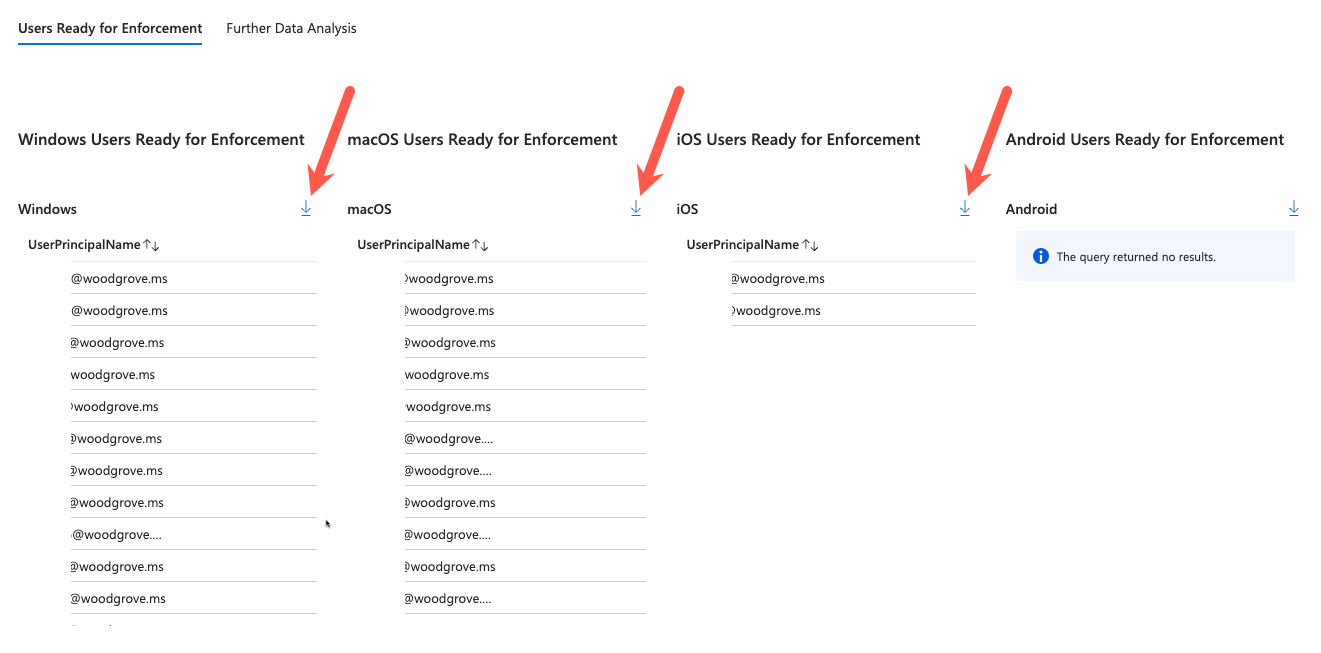
Report-only: Failure means the user would have been blocked. User action required means they would have been prompted, for example to use a passkey they don't have. Both are your pre-enforcement to-do list. Report-only isn't available for policies scoped to user actions such as Register security information.

Hands-on: build and verify enforcement with PowerShell

Connect-MgGraph -TenantId $tenantId -ContextScope Process -NoWelcome -Scopes `
    'Policy.Read.All', 'Policy.ReadWrite.ConditionalAccess', 'RoleManagement.Read.Directory', 'GroupMember.Read.All', 'AuditLog.Read.All'

Graph known issue: creating or patching Conditional Access policies requires consent to Policy.Read.All in addition to Policy.ReadWrite.ConditionalAccess.

Inspect strengths: Get-EptAuthenticationStrength

function Get-EptAuthenticationStrength {
    <#
    .SYNOPSIS
        Lists built-in and custom authentication strengths with their allowed method combinations.
    .DESCRIPTION
        GET /policies/authenticationStrengthPolicies (v1.0). Output exposes StrengthId, which binds by
        property name to New-EptStrengthPolicy -AuthenticationStrengthId.
        Requires: Policy.Read.All (or Policy.Read.AuthenticationMethod).
    .EXAMPLE
        Get-EptAuthenticationStrength | Format-Table Name, PolicyType, AllowsPhishable
    .EXAMPLE
        Get-EptAuthenticationStrength -Name 'Admin*' | New-EptStrengthPolicy -DisplayName 'CA101 Admins - custom strength' -AdminRoles -ExcludeGroupId $bg
    #>
    [CmdletBinding()]
    [OutputType('Ept.AuthenticationStrength')]
    param(
        [SupportsWildcards()]
        [string] $Name = '*'
    )
    Assert-EptGraphConnection -RequiredScope 'Policy.Read.All'
    $phishable = 'sms|voice|softwareOath|hardwareOath|microsoftAuthenticatorPush|deviceBasedPush|temporaryAccessPass|email|federated|qrCodePin|password'

    Invoke-EptGraphRequest -Uri 'https://graph.microsoft.com/v1.0/policies/authenticationStrengthPolicies' |
        Where-Object displayName -Like $Name |
        ForEach-Object {
            $aaguids = @($_.combinationConfigurations | Where-Object allowedAAGUIDs | ForEach-Object allowedAAGUIDs)
            [pscustomobject]@{
                PSTypeName          = 'Ept.AuthenticationStrength'
                StrengthId          = $_.id
                Name                = $_.displayName
                PolicyType          = $_.policyType
                AllowedCombinations = @($_.allowedCombinations)
                AllowsPhishable     = [bool](@($_.allowedCombinations) -match $phishable)
                RestrictedAaguids   = $aaguids
            }
        }
}

Source: EntraPasskeyToolkit/Public/Enforcement.ps1

AllowsPhishable is the flag that matters. Any strength that accepts sms, voice, OATH, push, TAP, or a password combination is not phishing-resistant, whatever its name says.

Get-EptAuthenticationStrength | Format-Table Name, PolicyType, AllowsPhishable, @{ n = 'Combinations'; e = { $_.AllowedCombinations -join ', ' } } -Wrap

Create a Tier 0 strength: New-EptAuthenticationStrength

function New-EptAuthenticationStrength {
    <#
    .SYNOPSIS
        Creates a custom authentication strength, optionally pinning passkeys to approved AAGUIDs.
    .DESCRIPTION
        WRITE OPERATION. POST /policies/authenticationStrengthPolicies (v1.0).
        The typical use is a "privileged" strength that only accepts FIDO2 keys from an approved
        model list, plus Windows Hello for Business and multifactor certificates.
        Tenants can hold up to 15 custom strengths.
        AAGUID restriction is only a hard control when attestation is enforced on the matching
        passkey profile; otherwise an authenticator can claim any AAGUID.
        Requires: Policy.ReadWrite.ConditionalAccess + Conditional Access Administrator or Security Administrator.
    .EXAMPLE
        New-EptAuthenticationStrength -DisplayName 'Admins - approved security keys' `
            -AllowedCombination fido2, windowsHelloForBusiness -AllowedAaguid $approvedKeys -WhatIf
    #>
    [CmdletBinding(SupportsShouldProcess, ConfirmImpact = 'Medium')]
    [OutputType('Ept.AuthenticationStrength')]
    param(
        [Parameter(Mandatory)]
        [string] $DisplayName,

        [string] $Description = 'Created by EntraPasskeyToolkit',

        [ValidateSet('fido2', 'windowsHelloForBusiness', 'x509CertificateMultiFactor', 'deviceBasedPush',
                     'temporaryAccessPassOneTime', 'temporaryAccessPassMultiUse')]
        [string[]] $AllowedCombination = @('fido2', 'windowsHelloForBusiness', 'x509CertificateMultiFactor'),

        [ValidatePattern('^[0-9a-fA-F-]{36}$')]
        [string[]] $AllowedAaguid
    )
    Assert-EptGraphConnection -RequiredScope 'Policy.ReadWrite.ConditionalAccess'

    $body = [ordered]@{
        displayName           = $DisplayName
        description           = $Description
        requirementsSatisfied = 'mfa'
        allowedCombinations   = @($AllowedCombination)
    }
    if ($AllowedAaguid) {
        if ($AllowedCombination -notcontains 'fido2') { throw '-AllowedAaguid requires fido2 in -AllowedCombination.' }
        $body.combinationConfigurations = @(@{
            '@odata.type'         = '#microsoft.graph.fido2CombinationConfiguration'
            appliesToCombinations = @('fido2')
            allowedAAGUIDs        = @($AllowedAaguid | ForEach-Object ToLower)
        })
    }

    if ($PSCmdlet.ShouldProcess($DisplayName, "Create authentication strength ($($AllowedCombination -join ', '))")) {
        $created = Invoke-EptGraphRequest -Method POST -Uri 'https://graph.microsoft.com/v1.0/policies/authenticationStrengthPolicies' -Body $body
        Get-EptAuthenticationStrength | Where-Object StrengthId -eq $created.id
    }
}

Source: EntraPasskeyToolkit/Public/Enforcement.ps1

$approvedKeyAaguids = @('ee882879-721c-4913-9775-3dfcce97072a', 'fa2b99dc-9e39-4257-8f92-4a30d23c4118')  # replace with yours

New-EptAuthenticationStrength -DisplayName 'Tier0 - approved security keys + WHfB' `
    -AllowedCombination fido2, windowsHelloForBusiness -AllowedAaguid $approvedKeyAaguids -WhatIf

Review existing policies: Get-EptConditionalAccessPolicy

This flattens every policy into a row with the flags you care about: RequiresPhishResistant, RequiresMfa, BlocksDeviceCode, targets and exclusions.

function Get-EptConditionalAccessPolicy {
    <#
    .SYNOPSIS
        Flattens Conditional Access policies into reviewable rows with MFA-relevant flags.
    .DESCRIPTION
        GET /identity/conditionalAccess/policies (v1.0). Resolves the authentication strength name and
        flags policies that require phishing-resistant MFA, generic MFA, or block device code flow.
        It does NOT compute effective access; group nesting, exclusions and multiple policies must still
        be evaluated with the What If tool or report-only results.
        Requires: Policy.Read.All + a role such as Security Reader or Global Reader.
    .EXAMPLE
        Get-EptConditionalAccessPolicy | Where-Object RequiresPhishResistant | Format-Table Name, State, IncludeUsers, IncludeRoles
    .EXAMPLE
        Get-EptConditionalAccessPolicy | Where-Object { $_.State -eq 'enabled' -and $_.RequiresMfa -and -not $_.StrengthName }
    #>
    [CmdletBinding()]
    [OutputType('Ept.ConditionalAccessPolicy')]
    param(
        [ValidateSet('enabled', 'disabled', 'enabledForReportingButNotEnforced')]
        [string[]] $State
    )
    Assert-EptGraphConnection -RequiredScope 'Policy.Read.All'

    $strengths = @{}
    Get-EptAuthenticationStrength | ForEach-Object { $strengths[$_.StrengthId] = $_ }

    Invoke-EptGraphRequest -Uri 'https://graph.microsoft.com/v1.0/identity/conditionalAccess/policies' |
        Where-Object { -not $State -or $_.state -in $State } |
        ForEach-Object {
            $c = $_.conditions
            $g = $_.grantControls
            $strengthId = $g.authenticationStrength.id
            $strength = if ($strengthId) { $strengths[$strengthId] }
            [pscustomobject]@{
                PSTypeName             = 'Ept.ConditionalAccessPolicy'
                PolicyId               = $_.id
                Name                   = $_.displayName
                State                  = $_.state
                IncludeUsers           = @($c.users.includeUsers)
                IncludeGroups          = @($c.users.includeGroups)
                IncludeRoles           = @($c.users.includeRoles)
                ExcludeUsers           = @($c.users.excludeUsers)
                ExcludeGroups          = @($c.users.excludeGroups)
                Applications           = @($c.applications.includeApplications)
                UserActions            = @($c.applications.includeUserActions)
                ClientAppTypes         = @($c.clientAppTypes)
                TransferMethods        = $c.authenticationFlows.transferMethods
                GrantOperator          = $g.operator
                BuiltInControls        = @($g.builtInControls)
                StrengthName           = $strength.Name
                RequiresMfa            = (@($g.builtInControls) -contains 'mfa') -or [bool]$strengthId
                RequiresPhishResistant = [bool]($strength -and -not $strength.AllowsPhishable)
                BlocksDeviceCode       = (@($g.builtInControls) -contains 'block') -and ([string]$c.authenticationFlows.transferMethods -match 'deviceCodeFlow')
                SessionControls        = @($_.sessionControls.PSObject.Properties | Where-Object { $_.Value } | ForEach-Object Name)
            }
        }
}

Source: EntraPasskeyToolkit/Public/Enforcement.ps1

# Policies that ask for "MFA" but accept phishable methods: your weak-fallback suspects
Get-EptConditionalAccessPolicy -State enabled |
    Where-Object { $_.RequiresMfa -and -not $_.RequiresPhishResistant } |
    Format-Table Name, StrengthName, @{ n = 'Users'; e = { $_.IncludeUsers + $_.IncludeGroups + $_.IncludeRoles -join ', ' } }

# Is device code flow blocked anywhere?
Get-EptConditionalAccessPolicy | Where-Object BlocksDeviceCode | Format-Table Name, State

# Snapshot before every change (JSON is review evidence, not a restore script)
Get-EptConditionalAccessPolicy | ConvertTo-Json -Depth 5 | Set-Content "./ca-snapshot-$(Get-Date -Format yyyyMMdd-HHmm).json"

Create the policies: New-EptStrengthPolicy and New-EptDeviceCodeBlockPolicy

Both default to report-only and both make -ExcludeGroupId mandatory, so nobody can forget the break-glass accounts. New-EptStrengthPolicy takes StrengthId from the pipeline, so the output of Get-EptAuthenticationStrength flows straight in. -AdminRoles resolves Microsoft's list of 14 privileged roles by display name, which avoids hard-coded role GUIDs.

function New-EptStrengthPolicy {
    <#
    .SYNOPSIS
        Creates a Conditional Access policy that requires an authentication strength (report-only by default).
    .DESCRIPTION
        WRITE OPERATION. POST /identity/conditionalAccess/policies (v1.0).
        Defaults follow Microsoft's deployment guidance: built-in Phishing-resistant MFA strength,
        All resources, report-only state. -ExcludeGroupId is mandatory so that break-glass
        accounts are never forgotten.

        Accepts StrengthId from Get-EptAuthenticationStrength over the pipeline.
        Only built-in directory roles are honoured by Conditional Access; administrative-unit-scoped
        and custom roles are not.

        Requires: Policy.Read.All + Policy.ReadWrite.ConditionalAccess (+ RoleManagement.Read.Directory
        for -AdminRoles) and Conditional Access Administrator.
    .EXAMPLE
        New-EptStrengthPolicy -DisplayName 'CA100 Admins - Phishing-resistant MFA' -AdminRoles -ExcludeGroupId $breakGlassGroupId -WhatIf
    .EXAMPLE
        New-EptStrengthPolicy -DisplayName 'CA110 Pilot - Phishing-resistant MFA' -IncludeGroupId $pilotGroupId -ExcludeGroupId $breakGlassGroupId
    #>
    [Diagnostics.CodeAnalysis.SuppressMessageAttribute('PSReviewUnusedParameter', '',
        Justification = '-AdminRoles and -AllUsers select parameter sets.')]
    [CmdletBinding(SupportsShouldProcess, ConfirmImpact = 'High', DefaultParameterSetName = 'Groups')]
    [OutputType('Ept.ConditionalAccessPolicy')]
    param(
        [Parameter(Mandatory)]
        [string] $DisplayName,

        [Parameter(Mandatory, ParameterSetName = 'Groups')]
        [guid[]] $IncludeGroupId,

        [Parameter(Mandatory, ParameterSetName = 'Roles')]
        [switch] $AdminRoles,

        [Parameter(ParameterSetName = 'Roles')]
        [string[]] $RoleName = $script:EptAdminRoleName,

        [Parameter(Mandatory, ParameterSetName = 'AllUsers')]
        [switch] $AllUsers,

        [Parameter(Mandatory)]
        [guid[]] $ExcludeGroupId,

        [Parameter(ValueFromPipelineByPropertyName)]
        [Alias('StrengthId')]
        [guid] $AuthenticationStrengthId = $script:EptBuiltInStrength.PhishingResistant,

        [string[]] $IncludeApplication = @('All'),

        [ValidateSet('enabled', 'disabled', 'enabledForReportingButNotEnforced')]
        [string] $State = 'enabledForReportingButNotEnforced'
    )
    begin {
        Assert-EptGraphConnection -RequiredScope 'Policy.Read.All', 'Policy.ReadWrite.ConditionalAccess'
    }
    process {
        $users = @{ excludeGroups = @($ExcludeGroupId.Guid) }
        switch ($PSCmdlet.ParameterSetName) {
            'Groups' { $users.includeGroups = @($IncludeGroupId.Guid) }
            'AllUsers' { $users.includeUsers = @('All') }
            'Roles' {
                Assert-EptGraphConnection -RequiredScope 'RoleManagement.Read.Directory'
                $users.includeRoles = @(foreach ($r in $RoleName) {
                    $def = Invoke-EptGraphRequest -Uri ("https://graph.microsoft.com/v1.0/roleManagement/directory/roleDefinitions?`$filter=displayName eq '{0}'&`$select=templateId" -f $r)
                    if (-not $def) { throw "Role '$r' not found." }
                    $def.templateId
                })
            }
        }

        $body = [ordered]@{
            displayName   = $DisplayName
            state         = $State
            conditions    = @{
                users          = $users
                applications   = @{ includeApplications = $IncludeApplication }
                clientAppTypes = @('all')
            }
            grantControls = @{
                operator               = 'OR'
                authenticationStrength = @{ id = $AuthenticationStrengthId.Guid }
            }
        }

        if ($State -eq 'enabled') {
            Write-Warning 'Creating an ENFORCED policy. Confirm every targeted user has a qualifying method registered, and that break-glass accounts are excluded.'
        }
        if ($PSCmdlet.ShouldProcess($DisplayName, "Create CA policy [$State] requiring strength $AuthenticationStrengthId")) {
            $created = Invoke-EptGraphRequest -Method POST -Uri 'https://graph.microsoft.com/v1.0/identity/conditionalAccess/policies' -Body $body
            Get-EptConditionalAccessPolicy | Where-Object PolicyId -eq $created.id
        }
    }
}

Source: EntraPasskeyToolkit/Public/Enforcement.ps1

function New-EptDeviceCodeBlockPolicy {
    <#
    .SYNOPSIS
        Creates a Conditional Access policy that blocks device code flow (and optionally authentication transfer).
    .DESCRIPTION
        WRITE OPERATION. Microsoft recommends blocking device code flow wherever possible, because an
        attacker can get a victim to approve a code on the genuine Microsoft sign-in page.
        Created in report-only state by default so you can find legitimate users first
        (Teams Rooms, shared-device provisioning, some CLI workflows).
        -ExcludeDeviceRegistrationService excludes the Device Registration Service app
        (01cb2876-7ebd-4aa4-9cc9-d28bd4d359a9) for tenants that register devices with device code flow.
        Requires: Policy.Read.All + Policy.ReadWrite.ConditionalAccess + Conditional Access Administrator.
    .EXAMPLE
        New-EptDeviceCodeBlockPolicy -DisplayName 'CA010 All users - Block device code flow' -ExcludeGroupId $breakGlass, $teamsRoomsAccounts -WhatIf
    #>
    [CmdletBinding(SupportsShouldProcess, ConfirmImpact = 'High')]
    [OutputType('Ept.ConditionalAccessPolicy')]
    param(
        [Parameter(Mandatory)]
        [string] $DisplayName,

        [Parameter(Mandatory)]
        [guid[]] $ExcludeGroupId,

        [switch] $IncludeAuthenticationTransfer,

        [switch] $ExcludeDeviceRegistrationService,

        [ValidateSet('enabled', 'disabled', 'enabledForReportingButNotEnforced')]
        [string] $State = 'enabledForReportingButNotEnforced'
    )
    Assert-EptGraphConnection -RequiredScope 'Policy.Read.All', 'Policy.ReadWrite.ConditionalAccess'

    $transfer = if ($IncludeAuthenticationTransfer) { 'deviceCodeFlow,authenticationTransfer' } else { 'deviceCodeFlow' }
    $apps = @{ includeApplications = @('All') }
    if ($ExcludeDeviceRegistrationService) { $apps.excludeApplications = @('01cb2876-7ebd-4aa4-9cc9-d28bd4d359a9') }

    $body = [ordered]@{
        displayName   = $DisplayName
        state         = $State
        conditions    = @{
            users               = @{ includeUsers = @('All'); excludeGroups = @($ExcludeGroupId.Guid) }
            applications        = $apps
            clientAppTypes      = @('all')
            authenticationFlows = @{ transferMethods = $transfer }   # a flags string, not an array
        }
        grantControls = @{ operator = 'OR'; builtInControls = @('block') }
    }

    if ($PSCmdlet.ShouldProcess($DisplayName, "Create CA policy [$State] blocking $transfer")) {
        $created = Invoke-EptGraphRequest -Method POST -Uri 'https://graph.microsoft.com/v1.0/identity/conditionalAccess/policies' -Body $body
        Get-EptConditionalAccessPolicy | Where-Object PolicyId -eq $created.id
    }
}

Source: EntraPasskeyToolkit/Public/Enforcement.ps1

$breakGlass = '<object id of EmergencyAccess group>'
$pilot      = '<object id of passkey pilot group>'

# Admins: phishing-resistant, report-only
New-EptStrengthPolicy -DisplayName 'CA100 Admins - Require phishing-resistant MFA' -AdminRoles -ExcludeGroupId $breakGlass

# Admins with the custom Tier 0 strength, piped from the strength lookup
Get-EptAuthenticationStrength -Name 'Tier0*' |
    New-EptStrengthPolicy -DisplayName 'CA101 Admins - Require Tier0 keys' -AdminRoles -ExcludeGroupId $breakGlass -WhatIf

# Pilot users
New-EptStrengthPolicy -DisplayName 'CA110 Pilot - Require phishing-resistant MFA' -IncludeGroupId $pilot -ExcludeGroupId $breakGlass

# Device code flow + authentication transfer, report-only
New-EptDeviceCodeBlockPolicy -DisplayName 'CA010 All - Block device code and auth transfer' `
    -ExcludeGroupId $breakGlass -IncludeAuthenticationTransfer

Before switching CA010 to On, find who actually uses device code flow. Get-EptSignInMethod (full source in Part 5) reads the beta sign-in API, which exposes authenticationProtocol:

Get-EptSignInMethod -Days 30 -Protocol deviceCode |
    Group-Object UserPrincipalName, AppDisplayName -NoElement |
    Sort-Object Count -Descending |
    Format-Table Count, Name

Prove it: Test-EptPhishResistantCoverage

This is the function that answers the question from the opening scenario. For every user piped in, it checks:

  • whether an enabled policy requiring a phishing-resistant strength on All resources includes them, directly, through a group, through All users, or through an active directory role;
  • whether an exclusion removes them;
  • whether they have a phishing-resistant method registered, and which phishable methods they still hold.
function Test-EptPhishResistantCoverage {
    <#
    .SYNOPSIS
        For each user, answers: "Is an enforced phishing-resistant policy covering this user, and which
        phishable methods could still satisfy other policies?"
    .DESCRIPTION
        Combines three sources per user:
          1. Registered methods (Get-EptUserRegistration),
          2. Group and active directory-role membership (GET /users/{id}/transitiveMemberOf),
          3. ENABLED Conditional Access policies that require a strength with no phishable combinations
             and target All resources.
        A user is 'Covered' when at least one such policy includes them (All users, directly, by group or
        by role) and no exclusion removes them. Users who are not covered but have phishable methods
        registered are the "weak fallback" population described in Part 3.

        This is a triage aid, not an effective-access engine: it ignores conditions such as platforms,
        locations, client apps and PIM roles that are eligible but not active. Confirm edge cases with
        the Conditional Access What If tool.

        Requires: AuditLog.Read.All, Policy.Read.All, GroupMember.Read.All (or Directory.Read.All).
    .EXAMPLE
        Get-EptPrivilegedUser | Test-EptPhishResistantCoverage | Where-Object Verdict -ne 'Covered'
    .EXAMPLE
        Get-Content pilot-users.txt | Test-EptPhishResistantCoverage | Export-Csv coverage.csv -NoTypeInformation
    #>
    [CmdletBinding()]
    [OutputType('Ept.CoverageResult')]
    param(
        [Parameter(Mandatory, ValueFromPipeline, ValueFromPipelineByPropertyName)]
        [Alias('Id', 'UserId', 'UPN')]
        [string] $UserPrincipalName
    )
    begin {
        Assert-EptGraphConnection -RequiredScope 'AuditLog.Read.All', 'Policy.Read.All', 'GroupMember.Read.All'
        $strongPolicies = @(Get-EptConditionalAccessPolicy -State enabled |
            Where-Object { $_.RequiresPhishResistant -and $_.Applications -contains 'All' })
        if (-not $strongPolicies) {
            Write-Warning 'No ENABLED policy requires a phishing-resistant strength for All resources. Every user will report NotCovered.'
        }
    }
    process {
        $reg = Get-EptUserRegistration -UserPrincipalName $UserPrincipalName | Select-Object -First 1
        $userId = if ($reg) { $reg.UserId } else { $UserPrincipalName }

        # No $select: groups and directoryRoles have different properties; discriminate on @odata.type.
        $memberOf = @(Invoke-EptGraphRequest -Uri "https://graph.microsoft.com/v1.0/users/$(Resolve-EptUserId $userId)/transitiveMemberOf")
        $groupIds = @($memberOf | Where-Object { $_.'@odata.type' -eq '#microsoft.graph.group' } | ForEach-Object id)
        $roleIds = @($memberOf | Where-Object { $_.'@odata.type' -eq '#microsoft.graph.directoryRole' } | ForEach-Object roleTemplateId)

        $covering = foreach ($p in $strongPolicies) {
            $included = $p.IncludeUsers -contains 'All' -or $p.IncludeUsers -contains $userId -or
                        ($p.IncludeGroups | Where-Object { $_ -in $groupIds }) -or
                        ($p.IncludeRoles | Where-Object { $_ -in $roleIds })
            $excluded = $p.ExcludeUsers -contains $userId -or ($p.ExcludeGroups | Where-Object { $_ -in $groupIds })
            if ($included -and -not $excluded) { $p.Name }
        }

        $hasStrong = [bool]$reg.HasPhishingResistant
        $verdict = if ($covering -and $hasStrong) { 'Covered' }
                   elseif ($covering) { 'CoveredButNoMethod' }      # will be blocked or prompted to register
                   elseif ($reg.PhishableMethods) { 'NotCovered-PhishableFallback' }
                   else { 'NotCovered' }

        [pscustomobject]@{
            PSTypeName           = 'Ept.CoverageResult'
            UserPrincipalName    = if ($reg) { $reg.UserPrincipalName } else { $UserPrincipalName }
            Verdict              = $verdict
            CoveringPolicies     = @($covering) -join '; '
            HasPhishingResistant = $hasStrong
            PhishableMethods     = @($reg.PhishableMethods) -join ';'
            ActiveRoleCount      = $roleIds.Count
        }
    }
}

Source: EntraPasskeyToolkit/Public/Enforcement.ps1

# Every admin: are they really covered?
Get-EptPrivilegedUser | Test-EptPhishResistantCoverage | Format-Table UserPrincipalName, Verdict, CoveringPolicies, PhishableMethods

# Pilot readiness before flipping CA110 from report-only to On
Get-Content ./pilot-users.txt | Test-EptPhishResistantCoverage | Group-Object Verdict -NoElement
Verdict Meaning Action
Covered Enforced phishing-resistant policy applies, and the user has a qualifying method None. Keep monitoring usage (Part 5)
CoveredButNoMethod Policy applies, but no phishing-resistant method is registered The user will be blocked or prompted. Issue a TAP and register a passkey (Part 4)
NotCovered-PhishableFallback No enforced policy, and phishable methods are registered This is the gap. Add them to the pilot or policy scope
NotCovered No enforced policy and no phishable methods Usually a new or unregistered user. Onboard with TAP

It is a triage tool, not an effective-access engine. It ignores platform, location and client-app conditions, and PIM roles that are eligible but not active. Confirm edge cases with the What If tool in Conditional Access.

Best practices

  1. Require an authentication strength, not "MFA", for anything you care about. Generic MFA accepts SMS.
  2. Exclude break-glass accounts from every policy that can block, using a dedicated group. Report-only policies don't need the exclusion (Part 6).
  3. Report-only → small enforced cohort → expand. Review Failure and User action required results at each step.
  4. Enforce by OS group when you reach the general workforce, so one platform's gap doesn't stall the rest.
  5. Block device code flow and authentication transfer unless you have a documented, scoped exception.
  6. Remove phishable methods from privileged users' method policy once they're covered. Even unused, they're an attack path for SSPR and help-desk social engineering.
  7. Snapshot policies before every change and keep the JSON with the change record.
  8. Verify outcomes, not configuration: a prepared pilot user reaches their apps with a passkey, and the same user fails with push or SMS.

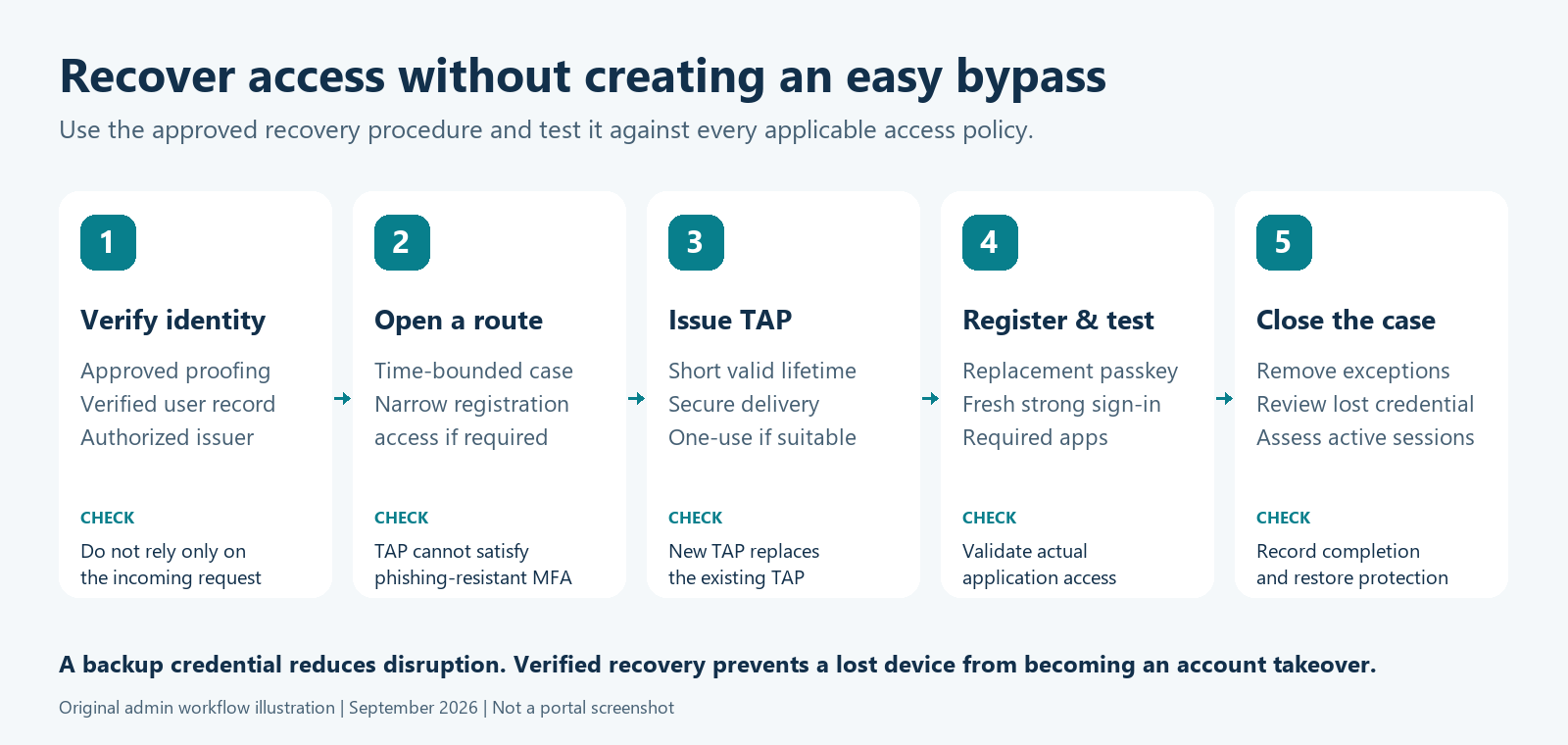
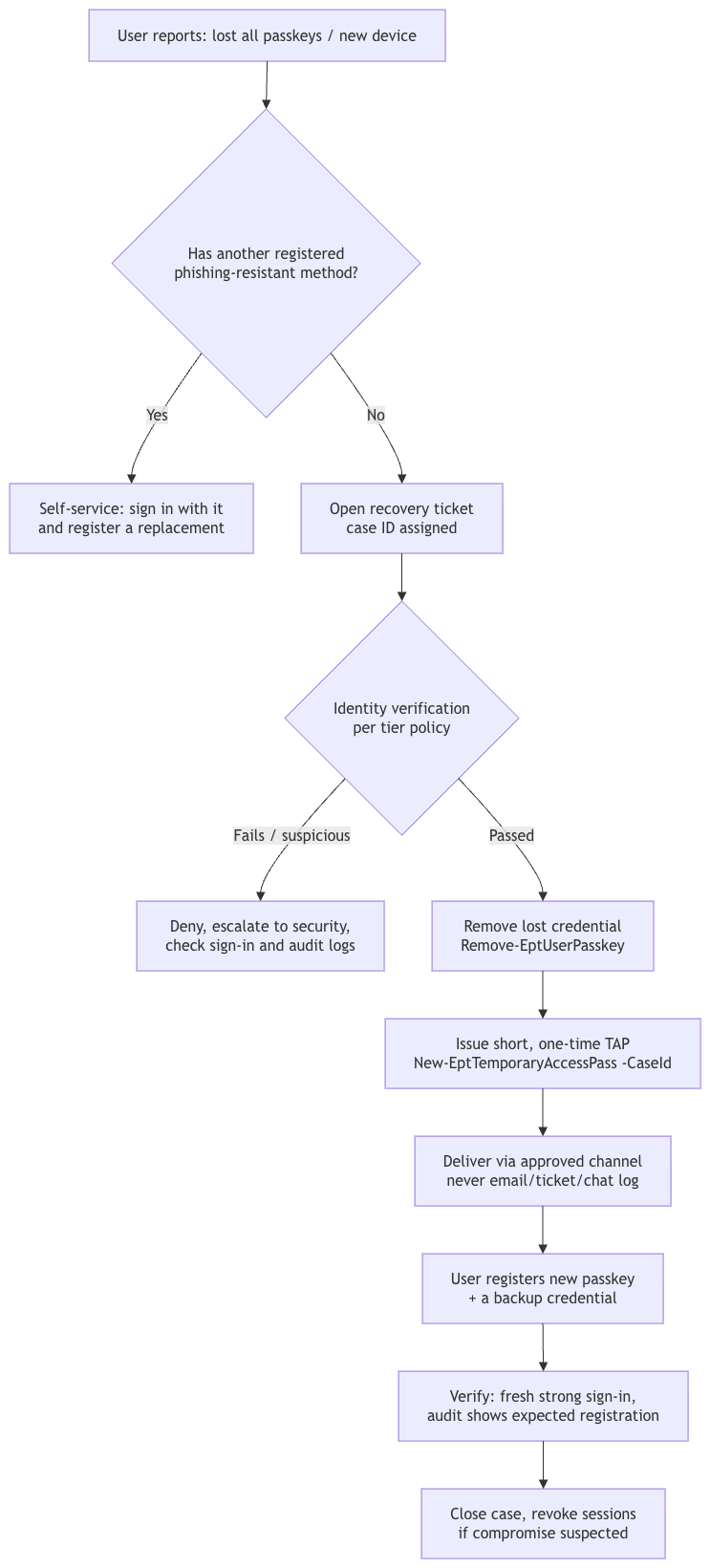
Next, Part 4: the new weak point. How users get their first passkey, and how an attacker is prevented from getting one on their behalf.

References

Passkeys Explained, and Choosing the Right Model

How WebAuthn defeats phishing, and how to match device-bound and synced passkeys to your workforce with passkey profiles

MFA to Passkeys in Microsoft Entra ID series · Part 2 of 7

In part 1 went over how an adversary-in-the-middle proxy relays a traditional MFA challenge and walks away with the session, something I have to admit I see often, almot always in the BEC (Bussiness Email Compromise) I see. This part answers the next two questions: what makes a passkey different, and which kind of passkey should each of your users have?

The second question used to be simple: buy security keys like the ones provided by Yubikey. In 2026 the answer is richer, and more nuanced. Entra ID now supports:

  • device-bound passkeys: FIDO2 security keys, Microsoft Authenticator, Microsoft Entra passkeys on Windows, and Windows Hello for Business;
  • synced passkeys: Apple Passwords/iCloud Keychain, Google Password Manager, and third-party managers such as 1Password and Bitwarden;
  • passkey profiles, which let you allow different kinds of passkeys for different groups.

If you choose right model and you can move most of the workforce to phishing-resistant sign-in with no hardware budget, while holding administrators to a much higher standard.

A passkey is a key pair, not a secret

Lets go over one of th biggest missunderstandings I see. A passkey is a FIDO2/WebAuthn credential. At registration:

  1. Entra ID (the relying party) sends a challenge and its identifier (login.microsoft.com).
  2. The authenticator generates a new key pair unique to that relying party and that account.
  3. The public key goes to Entra ID. The private key stays with the authenticator (device-bound) or in the user's end-to-end encrypted passkey provider (synced).

At sign-in:

Three properties stand out in this design:

  • Origin binding (step 2). The browser supplies the origin, not the user. If the page is login-micros0ft.example, the authenticator never finds a credential for it. There is nothing for a proxy to relay.
  • No shared secret. Entra ID stores only a public key. A database breach yields nothing reusable.
  • Two factors in one gesture. Possession of the authenticator plus local user verification (PIN or biometric) satisfies MFA. The biometric never leaves the device.

What passkeys don't solve: device code phishing (the user is on the real site), stolen session cookies after sign-in, and a help desk that registers an attacker's passkey on request. Parts 3–5 handle those cases.

The passkey landscape in Entra ID

Credential Type Where the private key lives Attestation possible Typical fit
FIDO2 security key (USB/NFC) Device-bound Secure element on the key Yes Admins, shared/kiosk devices, no-phone users
Passkey in Microsoft Authenticator (iOS 17+ / Android 14+) Device-bound Phone's secure hardware, inside Authenticator Yes (App Attest / Play Integrity) Mobile-first workforce, cross-device sign-in
Microsoft Entra passkey on Windows Device-bound Windows Hello container on that PC No (profile can't enforce attestation) Unmanaged or personal Windows PCs, multiple Entra accounts per PC
Windows Hello for Business Device-bound TPM on an Entra/hybrid-joined PC n/a (managed by Intune/GPO) Corporate Windows devices, including device sign-in
Platform SSO (macOS) Device-bound Secure Enclave n/a Corporate Macs
Synced passkey (iCloud Keychain, Google Password Manager, 1Password, Bitwarden…) Synced User's passkey provider, end-to-end encrypted, on all their devices No, never General workforce

Microsoft's own numbers for synced passkeys are compelling. From Microsoft Learn: 99% of users successfully register them, sign-in is 14× faster than password + traditional MFA (3 seconds instead of 69), and sign-in success is 95% vs. 30%.

Device-bound vs. synced: the real trade-off

Question Device-bound Synced
Can the organization verify the make/model? Yes, with attestation enforced No. Synced passkeys don't support attestation
What happens when a device is lost? Need a second credential or a recovery process (Part 4) Provider restores the passkey to a new device
Who controls recovery? You (help desk + TAP) The provider account (Apple ID, Google account…) and its recovery
Deployment cost Hardware and logistics (security keys) or app rollout (Authenticator) Nearly zero
Phishing-resistant? Yes Yes

The key sentence from Microsoft's FIDO2 guidance: "Treat synced passkeys as phishing-resistant credentials but with the same security posture as other unattested authenticators." Synced passkeys fully defeat AiTM phishing. What you give up is provenance: you can't prove the private key isn't also sitting in a personal account on a family iPad.

Attestation and AAGUIDs: know what you are really enforcing

Every authenticator model has an AAGUID, a 128-bit make-and-model identifier. Passkey profiles and authentication strengths can allow or block AAGUIDs. Read this carefully, though:

"If enforce attestation is set to No, Microsoft Entra ID can't guarantee any attribute about a passkey, including if it's synced or device-bound." (Microsoft Learn)

Without attestation, the AAGUID is a claim the authenticator makes about itself. Microsoft calls AAGUID lists a "policy guide rather than a strict security control" in that case. Two more caveats:

  • Attestation is checked at registration only. Turning it on later doesn't evict passkeys registered without it.
  • Removing an AAGUID from an allow list does stop existing passkeys of that model from signing in. Useful, but easy to trigger by accident.

Screenshot: Microsoft Learn. A user's passkey details in the admin center include the AAGUID.

Useful AAGUIDs published by Microsoft:

Authenticator AAGUID
Microsoft Authenticator (Android) de1e552d-db1d-4423-a619-566b625cdc84
Microsoft Authenticator (iOS) 90a3ccdf-635c-4729-a248-9b709135078f
Windows Hello (hardware) 08987058-cadc-4b81-b6e1-30de50dcbe96
Windows Hello (VBS hardware) 9ddd1817-af5a-4672-a2b9-3e3dd95000a9
Windows Hello (software) 6028b017-b1d4-4c02-b4b3-afcdafc96bb2

Security-key vendors publish theirs, and the FIDO Alliance Metadata Service lists certified models.

Choosing a model: personas, not a single answer

Microsoft's phishing-resistant passwordless deployment guide recommends one passkey profile per persona: FIDO2 security keys for admins and highly regulated users, synced passkeys for everyone else. It also recommends every user keep at least two methods registered. A practical tiering:

Persona Allowed passkeys Attestation Additional controls
Tier 0 – Privileged admins Device-bound only: approved security-key AAGUIDs (optionally Windows Hello hardware) Enforced Dedicated admin account, PAW or compliant device, two keys each (Part 6)
Tier 1 – Sensitive/regulated (finance, HR, legal, developers with prod access) Device-bound: security keys + Microsoft Authenticator Enforced Compliant device for sensitive apps
Tier 2 – General workforce Device-bound or synced Not enforced Compliant device where the app warrants it (Part 5)
Frontline / shared devices Security keys, or Entra passkey on Windows for a user's own PC Per risk No personal phone required

This isn't a universal prescription. BYOD policy, regulatory requirements, and whether you trust personal Apple/Google accounts all shift the lines. It is a good default to argue from.

Configuring passkey profiles

Passkey profiles are the mechanism for per-persona rules. Go to Entra ID → Authentication methods → Policies → Passkey (FIDO2). You need at least Authentication Policy Administrator. Passkeys are available in every Entra ID edition, including Free.

Screenshot: Microsoft Learn. Opting in moves your existing settings into a Default passkey profile. The opt-in is one-way.

Each profile defines three things:

  • Enforce attestation: on or off.
  • Passkey types: device-bound, synced, or both.
  • Target specific AAGUIDs: an allow list or a block list.

Some examples from Microsoft's documentation:

Passkey profile allowing only Microsoft Authenticator AAGUIDs

High-assurance profile allowing only Windows Hello hardware AAGUIDs

Then, on Enable and target, attach one or more profiles to each group:

Selecting which passkey profiles apply to a target group

Rules that trip up people

  • Limits. Microsoft Learn states that up to three profiles are supported, including the Default, with more "in development". Recent portal builds show a higher limit in the banner, so check your tenant. The entire policy must stay under 20 KB.
  • Multiple profiles per user. A passkey is allowed if it satisfies at least one of the user's profiles. Profiles add permissions. They don't intersect.
  • Exclusions win. Membership in an excluded group blocks passkey registration and sign-in entirely, even if the user is also in an included group.
  • Attestation needs device-bound. If attestation is on, synced passkeys are excluded. With the Authenticator app, attestation also blocks cross-device registration.
  • Entra passkeys on Windows need a profile that targets the Windows Hello AAGUIDs without attestation enforcement.
  • Registration requires recent MFA. Users must complete MFA within the past five minutes before registering a passkey.
  • Your own BYOD policies can block registration. Require app protection policy or Require approved client app on All resources stops passkey registration in Microsoft Authenticator, because Authenticator doesn't support app protection policies. See Part 4 for how to diagnose and fix it.
  • Guests can't register passkeys yet. Microsoft plans B2B/guest passkey support "by the end of calendar year 2026".
  • UPN changes require users to delete and re-register their passkeys.
  • Self-service setup is global. Allow self-service set up applies to the whole policy, not to individual profiles.

What users see

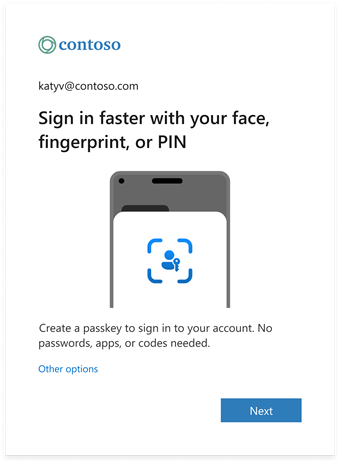
Registration happens at My Sign-Ins → Security info → + Add sign-in method → Passkey. The OS then offers the available passkey providers (Windows Hello, a security key, a phone, iCloud Keychain, Google Password Manager, or a third-party manager).

Security info Add sign-in method

Passkey added in Security info

Hands-on: inventory and configure passkeys with PowerShell

Read the current configuration: Get-EptPasskeyProfile

This returns one object per passkey profile, with attestation mode, passkey types, key restrictions and the groups that use it. Tenants that haven't opted in to profiles get a single Legacy row describing the tenant-wide settings. Those tenant-level properties (isAttestationEnforced, keyRestrictions) are deprecated in Graph v1.0 and scheduled for removal in October 2027.

function Get-EptPasskeyProfile {
    <#
    .SYNOPSIS
        Returns the Passkey (FIDO2) method configuration with its passkey profiles and targets.
    .DESCRIPTION
        GET /policies/authenticationMethodsPolicy/authenticationMethodConfigurations/fido2 (v1.0).
        Emits one object per passkey profile, with the groups that use it. Tenants that have not
        opted in to passkey profiles return the legacy tenant-wide settings as a single 'Legacy' profile.
        (The tenant-level isAttestationEnforced / keyRestrictions properties are deprecated and
        scheduled for removal in October 2027.)

        Requires: Policy.Read.All (or Policy.Read.AuthenticationMethod).
    .EXAMPLE
        Get-EptPasskeyProfile | Format-List
    #>
    [CmdletBinding()]
    [OutputType('Ept.PasskeyProfile')]
    param()

    Assert-EptGraphConnection -RequiredScope 'Policy.Read.All'
    $config = Invoke-EptGraphRequest -Uri 'https://graph.microsoft.com/v1.0/policies/authenticationMethodsPolicy/authenticationMethodConfigurations/fido2'

    $profiles = @($config.passkeyProfiles)
    if (-not $profiles) {
        $profiles = @([pscustomobject]@{
            id                     = 'legacy'
            name                   = 'Legacy (tenant-wide settings)'
            passkeyTypes           = 'deviceBound,synced'
            attestationEnforcement = if ($config.isAttestationEnforced) { 'registrationOnly' } else { 'disabled' }
            keyRestrictions        = $config.keyRestrictions
        })
    }

    foreach ($p in $profiles) {
        $targets = @($config.includeTargets | Where-Object {
            $_.allowedPasskeyProfiles -contains $p.id -or $p.id -eq 'legacy' -or
            (-not $_.allowedPasskeyProfiles -and $p.id -eq $config.defaultPasskeyProfile)
        })
        [pscustomobject]@{
            PSTypeName           = 'Ept.PasskeyProfile'
            PolicyState          = $config.state
            SelfServiceSetup     = $config.isSelfServiceRegistrationAllowed
            ProfileId            = $p.id
            ProfileName          = $p.name
            IsDefault            = ($p.id -eq $config.defaultPasskeyProfile)
            PasskeyTypes         = $p.passkeyTypes
            Attestation          = $p.attestationEnforcement
            KeyRestriction       = if ($p.keyRestrictions.isEnforced) { $p.keyRestrictions.enforcementType } else { 'none' }
            Aaguids              = @($p.keyRestrictions.aaGuids)
            TargetIds            = @($targets.id)
            ExcludedIds          = @($config.excludeTargets.id)
        }
    }
}

Source: EntraPasskeyToolkit/Public/Passkey.ps1

Connect-MgGraph -TenantId $tenantId -ContextScope Process -NoWelcome -Scopes 'Policy.Read.All'
Get-EptPasskeyProfile | Format-Table ProfileName, PasskeyTypes, Attestation, KeyRestriction, @{ n = 'Targets'; e = { $_.TargetIds -join ', ' } }

The rest of the method policy: Get-EptAuthMethodPolicy

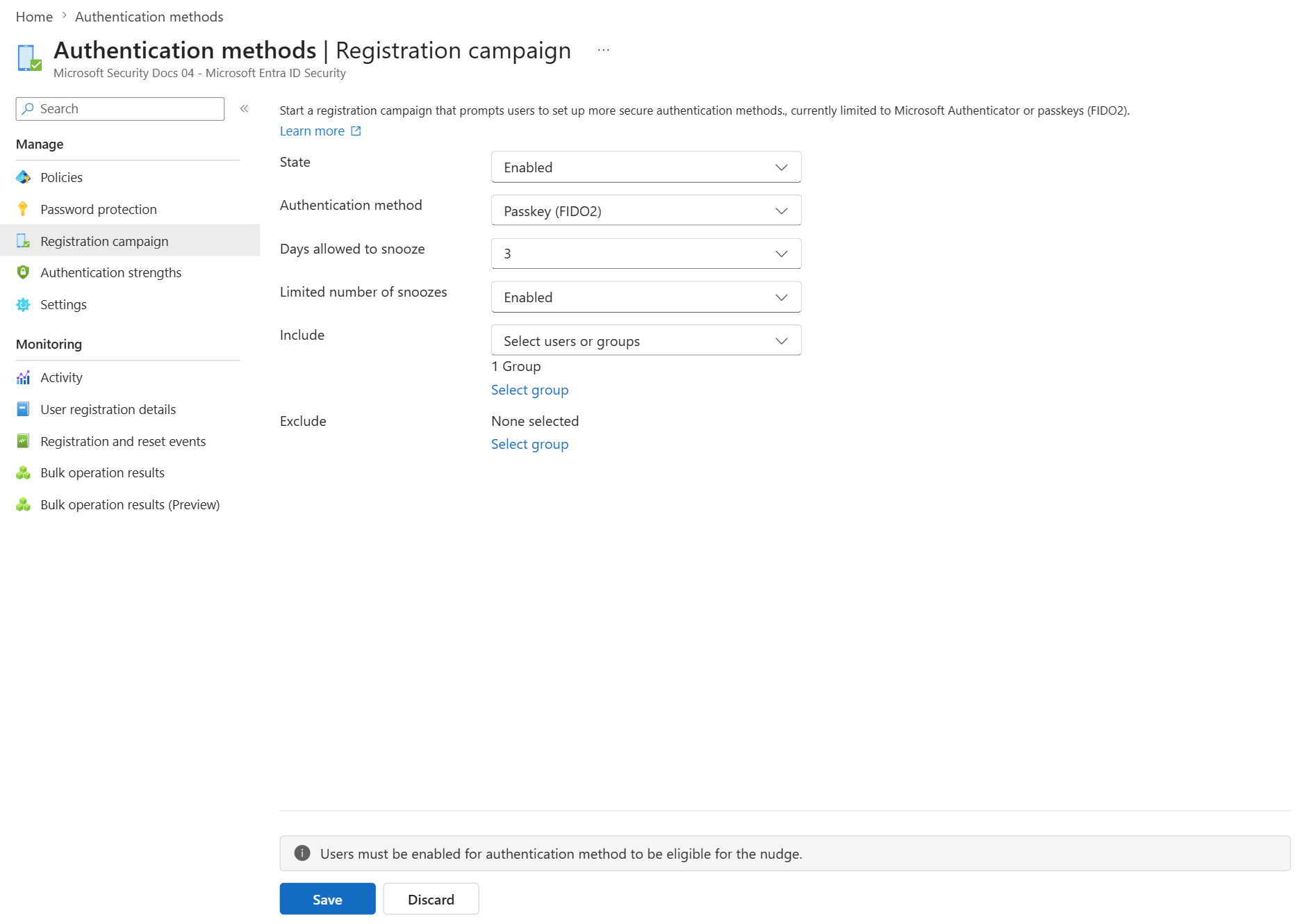
Part 1 used this function for the baseline. It is also the fastest way to confirm what the 1 September 2026 auto-enablement changed in your tenant:

function Get-EptAuthMethodPolicy {
    <#
    .SYNOPSIS
        Summarises every method in the Authentication methods policy: state, targets and exclusions.
    .DESCRIPTION
        GET /policies/authenticationMethodsPolicy (v1.0). One object per method configuration,
        plus the policy migration state and registration campaign settings on each object so that the
        output is self-contained when exported. Use it to answer "who is still enabled for SMS/voice?"
        and "is the legacy MFA/SSPR policy still in play?".

        Requires: Policy.Read.All (or Policy.Read.AuthenticationMethod).
    .EXAMPLE
        Get-EptAuthMethodPolicy | Where-Object State -eq 'enabled' | Format-Table Method, Targets, Excluded
    #>
    [CmdletBinding()]
    [OutputType('Ept.AuthMethodPolicy')]
    param()

    Assert-EptGraphConnection -RequiredScope 'Policy.Read.All'
    $policy = Invoke-EptGraphRequest -Uri 'https://graph.microsoft.com/v1.0/policies/authenticationMethodsPolicy'
    $campaign = $policy.registrationEnforcement.authenticationMethodsRegistrationCampaign

    foreach ($m in $policy.authenticationMethodConfigurations) {
        [pscustomobject]@{
            PSTypeName      = 'Ept.AuthMethodPolicy'
            Method          = $m.id
            State           = $m.state
            Targets         = @($m.includeTargets | ForEach-Object { if ($_.id -eq 'all_users') { 'All users' } else { $_.id } })
            Excluded        = @($m.excludeTargets.id)
            MigrationState  = $policy.policyMigrationState
            CampaignState   = $campaign.state
            CampaignMethod  = @($campaign.includeTargets.targetedAuthenticationMethod | Select-Object -Unique) -join ';'
            CampaignSnooze  = $campaign.snoozeDurationInDays
        }
    }
}

Source: EntraPasskeyToolkit/Public/Passkey.ps1

Who has which passkey: Get-EptUserPasskey

This lists every passkey for the users you pipe in, with PasskeyType (deviceBound or synced), AttestationLevel, and a friendly authenticator name resolved from the AAGUID. Pass -AaguidMap to add your approved security-key models.

function Get-EptUserPasskey {
    <#
    .SYNOPSIS
        Lists the passkeys (FIDO2 methods) registered to one or more users.
    .DESCRIPTION
        GET /users/{id}/authentication/fido2Methods (v1.0). Returns the passkey type (deviceBound or
        synced), attestation level, AAGUID with a friendly name where known, and creation date.

        Output binds by property name to Remove-EptUserPasskey (UserPrincipalName + MethodId).

        Remember: without attestation enforcement, Entra cannot guarantee any attribute of a
        passkey, including its AAGUID or whether it is device-bound. Treat unattested values as claims.

        Requires: UserAuthenticationMethod.Read.All (or UserAuthMethod-Passkey.Read.All) plus
        Global Reader, Authentication Administrator or Privileged Authentication Administrator.
    .PARAMETER AaguidMap
        Extra AAGUID-to-name mappings merged with the built-in list, e.g. your approved security keys.
    .EXAMPLE
        Get-EptPrivilegedUser | Get-EptUserPasskey | Where-Object PasskeyType -eq 'synced'
    .EXAMPLE
        Get-Content pilot.txt | Get-EptUserPasskey | Group-Object Authenticator | Sort-Object Count -Descending
    #>
    [CmdletBinding()]
    [OutputType('Ept.UserPasskey')]
    param(
        [Parameter(Mandatory, ValueFromPipeline, ValueFromPipelineByPropertyName)]
        [Alias('Id', 'UserId', 'UPN')]
        [string[]] $UserPrincipalName,

        [hashtable] $AaguidMap = @{}
    )
    begin {
        Assert-EptGraphConnection -RequiredScope 'UserAuthenticationMethod.Read.All'
        $names = $script:EptKnownAaguid.Clone()
        foreach ($k in $AaguidMap.Keys) { $names[$k.ToLower()] = $AaguidMap[$k] }
    }
    process {
        foreach ($user in $UserPrincipalName) {
            $uri = "https://graph.microsoft.com/v1.0/users/$(Resolve-EptUserId $user)/authentication/fido2Methods"
            try { $methods = @(Invoke-EptGraphRequest -Uri $uri) }
            catch { Write-Error "Could not read passkeys for '$user': $($_.Exception.Message)"; continue }

            foreach ($m in $methods) {
                $aaguid = ([string]$m.aaGuid).ToLower()
                [pscustomobject]@{
                    PSTypeName        = 'Ept.UserPasskey'
                    UserPrincipalName = $user
                    MethodId          = $m.id
                    DisplayName       = $m.displayName
                    Model             = $m.model
                    PasskeyType       = $m.passkeyType
                    AttestationLevel  = $m.attestationLevel
                    Aaguid            = $aaguid
                    Authenticator     = if ($names.ContainsKey($aaguid)) { $names[$aaguid] } elseif ($m.model) { $m.model } else { 'Unknown' }
                    Created           = if ($m.createdDateTime) { [datetime]$m.createdDateTime } else { $null }
                }
            }
        }
    }
}

Source: EntraPasskeyToolkit/Public/Passkey.ps1

Useful pipelines:

Connect-MgGraph -TenantId $tenantId -ContextScope Process -NoWelcome `
    -Scopes 'UserAuthenticationMethod.Read.All', 'RoleManagement.Read.Directory', 'GroupMember.Read.All', 'Policy.Read.All'

# Your approved security keys (example values; use the AAGUIDs of the models you buy)
$approvedKeys = @{
    'ee882879-721c-4913-9775-3dfcce97072a' = 'YubiKey 5 (USB-A, firmware 5.2/5.4)'
    'fa2b99dc-9e39-4257-8f92-4a30d23c4118' = 'YubiKey 5 NFC (firmware 5.1)'
}

# 1. Admins holding synced or unattested passkeys: the Tier 0 violations
Get-EptPrivilegedUser |
    Get-EptUserPasskey -AaguidMap $approvedKeys |
    Where-Object { $_.PasskeyType -eq 'synced' -or $_.AttestationLevel -ne 'attested' } |
    Format-Table UserPrincipalName, Authenticator, PasskeyType, AttestationLevel, Created

# 2. Which authenticators is the pilot group actually using?
Get-Content ./pilot-users.txt |
    Get-EptUserPasskey -AaguidMap $approvedKeys |
    Group-Object Authenticator -NoElement | Sort-Object Count -Descending

# 3. Users with exactly one passkey (no backup credential, so recovery is at risk)
Get-Content ./pilot-users.txt |
    Get-EptUserPasskey |
    Group-Object UserPrincipalName |
    Where-Object Count -eq 1 |
    Select-Object @{ n = 'UserPrincipalName'; e = { $_.Name } }

Get-EptPrivilegedUser is introduced in Part 6. It is used here to show how the functions compose: any command that emits objects with a UserPrincipalName property can feed any Ept function that takes users.

Create persona profiles: Add-EptPasskeyProfile

For repeatable builds, such as a test tenant, a second production tenant, or infrastructure-as-code reviews, Add-EptPasskeyProfile does a read-modify-write against the FIDO2 configuration. It reads the current profiles and targets, appends the new profile, and PATCHes the complete collections back so existing profiles are preserved. It refuses the one combination Entra will never accept (attestation plus synced passkeys) before calling Graph.

function Add-EptPasskeyProfile {
    <#
    .SYNOPSIS
        Adds a passkey profile to the Passkey (FIDO2) policy and, optionally, targets a group with it.
    .DESCRIPTION
        WRITE OPERATION. Read-modify-write against
        PATCH /policies/authenticationMethodsPolicy/authenticationMethodConfigurations/fido2 (v1.0):
        the current profiles and targets are read, the new profile is appended, and the complete
        collections are sent back so existing profiles are preserved.

        Prerequisites and limits (check Microsoft Learn for the current values):
          * The tenant must already have opted in to passkey profiles (a one-way change made in the portal).
          * The number of profiles per tenant is limited, and the whole policy must stay under 20 KB.
          * Attestation cannot be enforced on a profile that allows synced passkeys, and
            Entra passkeys on Windows need a profile without attestation enforcement.
          * Removing an AAGUID from an allow list later stops existing passkeys of that model from signing in.

        Validate in a test tenant first and run with -WhatIf to inspect the request body.
        Requires: Policy.ReadWrite.AuthenticationMethod + Authentication Policy Administrator.
    .EXAMPLE
        # Admin persona: hardware security keys only, attested
        Add-EptPasskeyProfile -Name 'Admins - attested security keys' -PasskeyType deviceBound `
            -EnforceAttestation -AllowedAaguid $approvedKeyAaguids -TargetGroupId $adminGroupId -WhatIf
    .EXAMPLE
        # Workforce: synced or device-bound, no attestation
        Add-EptPasskeyProfile -Name 'Workforce - synced allowed' -PasskeyType deviceBound, synced -TargetGroupId $pilotGroupId
    #>
    [CmdletBinding(SupportsShouldProcess, ConfirmImpact = 'High')]
    [OutputType('Ept.PasskeyProfile')]
    param(
        [Parameter(Mandatory)]
        [ValidateLength(1, 64)]
        [string] $Name,

        [Parameter(Mandatory)]
        [ValidateSet('deviceBound', 'synced')]
        [string[]] $PasskeyType,

        [switch] $EnforceAttestation,

        [ValidatePattern('^[0-9a-fA-F-]{36}$')]
        [string[]] $AllowedAaguid,

        [guid] $TargetGroupId
    )

    Assert-EptGraphConnection -RequiredScope 'Policy.ReadWrite.AuthenticationMethod'
    if ($EnforceAttestation -and $PasskeyType -contains 'synced') {
        throw 'Synced passkeys do not support attestation. Use -PasskeyType deviceBound with -EnforceAttestation.'
    }

    $uri = 'https://graph.microsoft.com/v1.0/policies/authenticationMethodsPolicy/authenticationMethodConfigurations/fido2'
    $config = Invoke-EptGraphRequest -Uri $uri
    if (-not $config.passkeyProfiles) {
        throw 'Passkey profiles are not enabled in this tenant. Opt in from the Passkey (FIDO2) settings page first.'
    }
    if ($config.passkeyProfiles.name -contains $Name) { throw "A passkey profile named '$Name' already exists." }

    $newProfile = [ordered]@{
        id                     = [guid]::NewGuid().ToString()
        name                   = $Name
        passkeyTypes           = ($PasskeyType | Select-Object -Unique) -join ','
        attestationEnforcement = if ($EnforceAttestation) { 'registrationOnly' } else { 'disabled' }
        keyRestrictions        = @{
            isEnforced      = [bool]$AllowedAaguid
            enforcementType = 'allow'
            aaGuids         = @($AllowedAaguid | ForEach-Object ToLower)
        }
    }

    $body = [ordered]@{
        '@odata.type'   = '#microsoft.graph.fido2AuthenticationMethodConfiguration'
        passkeyProfiles = @($config.passkeyProfiles) + $newProfile
    }
    if ($TargetGroupId) {
        $targets = @($config.includeTargets | Where-Object id -ne $TargetGroupId.ToString())
        $targets += [ordered]@{
            targetType             = 'group'
            id                     = $TargetGroupId.ToString()
            isRegistrationRequired = $false
            allowedPasskeyProfiles = @($newProfile.id)
        }
        $body.includeTargets = $targets
    }

    Write-Verbose ($body | ConvertTo-Json -Depth 10)
    if ($PSCmdlet.ShouldProcess('Passkey (FIDO2) policy', "Add profile '$Name' ($($newProfile.passkeyTypes), attestation=$($newProfile.attestationEnforcement))")) {
        Invoke-EptGraphRequest -Method PATCH -Uri $uri -Body $body | Out-Null
        Get-EptPasskeyProfile | Where-Object ProfileName -eq $Name
    }
}

Source: EntraPasskeyToolkit/Public/Passkey.ps1

Connect-MgGraph -TenantId $tenantId -ContextScope Process -NoWelcome `
    -Scopes 'Policy.ReadWrite.AuthenticationMethod', 'Policy.Read.All'

$tier0Group     = '<object id of your Tier 0 admins group>'
$workforceGroup = '<object id of your workforce pilot group>'

# Tier 0: attested hardware keys only. Preview the exact request body first.
Add-EptPasskeyProfile -Name 'Tier0 - attested security keys' -PasskeyType deviceBound `
    -EnforceAttestation -AllowedAaguid $approvedKeys.Keys -TargetGroupId $tier0Group -WhatIf -Verbose

# Workforce: any passkey type, no attestation
Add-EptPasskeyProfile -Name 'Workforce - device-bound or synced' -PasskeyType deviceBound, synced `
    -TargetGroupId $workforceGroup

Warning: Test in a non-production tenant first. Passkey-profile write operations are recent. Validate the request body with -WhatIf -Verbose and confirm the result in the portal. The function creates a new profile ID client-side. If your tenant's API version rejects that, create the profile in the portal and use the toolkit for inventory and verification.

Best practices

  1. Design profiles around personas (Tier 0 / sensitive / workforce / frontline), not around devices.
  2. Enforce attestation where provenance matters (admins, regulated roles). Accept unattested and synced passkeys where usability matters more than provenance.
  3. Require two credentials per user, especially for device-bound-only personas. Two copies inside the same provider account are not independent.
  4. Pilot the actual OS/browser combinations your users run. Passkey availability and prompts differ between Windows, macOS, iOS, Android and Linux.
  5. Communicate the approved providers. Tell users whether personal iCloud/Google accounts are acceptable, and what to name the passkey (for example, "YubiKey – blue – issued 2026-09").
  6. Treat AAGUID changes like firewall changes: peer review, change record, rollback plan. Removing an AAGUID locks out existing users of that model.
  7. Don't confuse enabling with enforcing. Everything in this post makes passkeys available. Nothing in it stops a user from signing in with SMS. That's Part 3.

Next, Part 3: authentication strengths and Conditional Access, where passkeys stop being optional.

References

MFA Passed. The Attacker Still Got In.

*MFA to Passkeys in Microsoft Entra ID series · Part 1 of 7

As long as I can remember, "turn on MFA" has been the single most repeated piece of identity security advice, heck I repeat this phrase on regular basis to customers at work, and for good reason. The security community has seen and experience has long shown that MFA blocks the overwhelming majority of password-based account compromise. But when we look at incident reports from the last two years and a pattern starts showing up: the user completed MFA, and the attacker still got in.

That is not a contradiction. MFA is not a single security property, even when we give the advise we lump it as one. It is a category of authentication methods, and those methods behave very differently under attack. An SMS code, an authenticator OTP, a push approval, and a FIDO2 passkey all satisfy a checkbox labeled "MFA". Only one of them is designed so that a convincing fake sign-in page cannot use it.

This first part of a series of blog post, this first one sets the foundation for the rest of the series:

  • Why traditional MFA fails against modern phishing kits,
  • What "phishing-resistant" actually means,
  • Why Microsoft's 2026–2027 changes make this urgent,
  • How to measure your tenant's real starting point with PowerShell.

Passkeys protect the sign-in ceremony. Parts 5 and 6 cover what happens after it.

The series at a glance

Part Title What you walk away with
1 MFA Passed. The Attacker Still Got In. Threat model, method strength ladder, baseline measurement
2 Passkeys Explained, and Choosing the Right Model How WebAuthn stops phishing, device-bound vs. synced, passkey profiles
3 Enabling Passkeys Is Not Enforcing Them Authentication strengths, Conditional Access, blocking device code flow
4 Enrollment and Recovery: The New Weak Point TAP, securing registration, help desk procedures, audit monitoring
5 Passkeys Stop Phishing, Not Every Token Theft Session protection, token protection, sign-in analytics, incident response
6 Protecting Privileged Access Admin personas, break-glass accounts, app owners and other hidden admins
7 The Migration Roadmap Phased plan, SMS/voice retirement, metrics, checklist

Every part ships PowerShell advanced functions from a companion module, EntraPasskeyToolkit (You know me I have to add some PowerShell in to the mix :) ). The functions are built to pipe into each other. For example, Get-EptPrivilegedUser | Test-EptPhishResistantCoverage takes every admin in your tenant and tells you whether a phishing-resistant policy actually covers them.

MFA is a category, not a control

Start by lining the methods up by what they actually resist:

Method Resists password spray / reuse Resists real-time phishing (AiTM) Resists SIM swap Satisfies the built-in Phishing-resistant MFA strength
Password only No No n/a No
SMS / voice call Yes No No No
Authenticator OTP / hardware OATH Yes No Yes No
Authenticator push with number matching Yes No (relay still works) Yes No
Authenticator passwordless phone sign-in Yes No Yes No (satisfies Passwordless MFA)
Passkey (FIDO2): security key, Authenticator, synced, Entra passkey on Windows Yes Yes Yes Yes
Windows Hello for Business / platform credential Yes Yes Yes Yes
Certificate-based authentication (multifactor) Yes Yes Yes Yes

In the table the last column matters most. Entra ID's built-in Phishing-resistant MFA authentication strength accepts exactly three families of methods:

Everything above them in the table can be phished.

Number matching is good, but it is not phishing resistance. It kills MFA-fatigue "spam until they approve" attacks, this is why Microsoft enforces it for Authenticator push. It does nothing against an adversary-in-the-middle proxy, because the victim is looking at the attacker's page and dutifully types the number that page shows.

Four ways attackers get past MFA

1. Adversary-in-the-middle (AiTM) phishing

This is the technique behind most if not all of the modern Microsoft 365 business email compromise that we see. Kits like Evilginx, and the phishing-as-a-service platforms built on the same idea, run a reverse proxy between the victim and the real login.microsoftonline.com.

MFA did not fail. The real user really did complete the challenge. Where weakness lies is that nothing in an OTP, SMS or push response is tied to the website the user was looking at, so the proxy can relay it. The prize is the session cookie. The attacker replays it from their own browser and never has to authenticate again until it expires or is revoked.

2. MFA fatigue and social engineering

These are push bombing and "Hi, it's the IT help desk, please approve the prompt I'm about to send". Number matching and additional context (app name, location) mostly neutralized raw push bombing. Help-desk impersonation moved elsewhere: attackers now call the service desk and talk their way into a new registration or a password reset. Part 4 covers that.

3. SIM swap and telephony interception

SMS and voice depend on the security of the mobile carrier's customer-service process and the SS7 network. A successful SIM swap redirects every code to the attacker. This is a major reason Microsoft is retiring Microsoft-provided SMS and voice for Entra MFA (see the timeline below).

4. Device code phishing

The attacker starts a legitimate OAuth device code flow, then sends the victim the real https://microsoft.com/devicelogin URL with a code: "Enter this code to view the shared document". The victim authenticates on a genuine Microsoft page, with whatever MFA they have, and the tokens go to the attacker's device. Passkeys do not help here: the victim really is on the real site, approving a sign-in for someone else's device. The fix is a Conditional Access policy that blocks device code flow, which Microsoft explicitly recommends "wherever possible" (Microsoft Learn: authentication flows). Part 3 builds that policy.

And after sign-in: token theft

Infostealer malware on an endpoint doesn't need to phish anyone. It copies the browser's cookie store and primary refresh tokens after a perfectly legitimate passkey sign-in. Part 5 is dedicated to this.

What "phishing-resistant" actually means

A phishing-resistant method has one essential property: the credential is cryptographically bound to the legitimate service's origin. With FIDO2/WebAuthn, the browser, not the user, tells the authenticator which site is asking. A passkey registered for login.microsoft.com simply does not respond to login-micros0ft.example. There is no code to type and nothing to relay, so the user has no way to make the mistake.

Certificate-based authentication and Windows Hello for Business get the same property through TLS client-certificate binding and device-bound keys respectively. Part 2 digs into the WebAuthn ceremony in detail.

Why this is urgent: Microsoft's 2026–2027 timeline

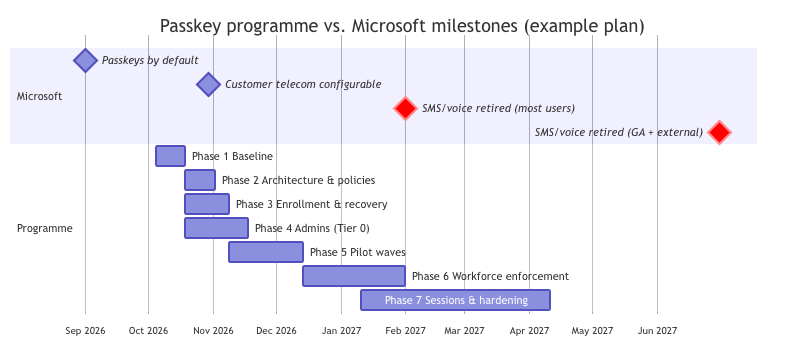
Microsoft is actively moving the platform away from telephony methods. The dates below come from Passkeys by default and retirement of Microsoft-provided SMS and voice authentication, I last checked this information 28 September 2026 as I wrote the blogpost. Re-check the page before you plan against it. As of October 2026, the first two milestones are behind us and the clock is running on the rest.

Date Status What changes
1 Sep 2026 Done Passkeys became the default. Users enabled for SMS or voice (in the Authentication methods policy or legacy MFA settings) were auto-enabled for passkeys, placed in a passkey profile that allows all passkey types, and the registration campaign was set to Microsoft managed targeting passkeys, with unlimited snoozes by default.
18 Sep 2026 Done Customer-managed telecom providers became available to review in the Microsoft Security Store (Soprano and Telesign are the initial private-preview providers).
30 Oct 2026 This month Customers who must keep SMS/voice can select and configure a telecom provider from the Security Store.
1 Feb 2027 About 4 months away Microsoft-provided SMS and voice delivery retires for all users except Global Administrators and external users. Users whose only MFA method is SMS/voice get a blocking prompt to register a passkey at sign-in. "There is no opt out from this February 1 behavior."
1 Jul 2027 Upcoming The same retirement applies to Global Administrators and external users. (Internal guests follow the February date.)

The retirement also applies to self-service password reset (SSPR). Separately, mandatory MFA for Azure and admin portals (phase 1, from October 2024) and for Azure CLI, PowerShell, IaC and REST create/update/delete operations (phase 2, from October 2025) already applies with no opt-out, including to break-glass accounts (Microsoft Learn: mandatory MFA).

If you haven't acted yet, Microsoft is already nudging your users toward passkeys on its own schedule (since 1 September), and it will force the issue on 1 February 2027. If you plan it, you choose the passkey types, the recovery process, and the enforcement order.

Best practices for the foundation phase

  1. Measure three things separately: what users have registered, what the policy allows, and what they actually use to sign in. They are almost never the same list.
  2. Stop treating "MFA registered" as a success metric. Track phishing-resistant registration and phishing-resistant sign-in percentages instead.
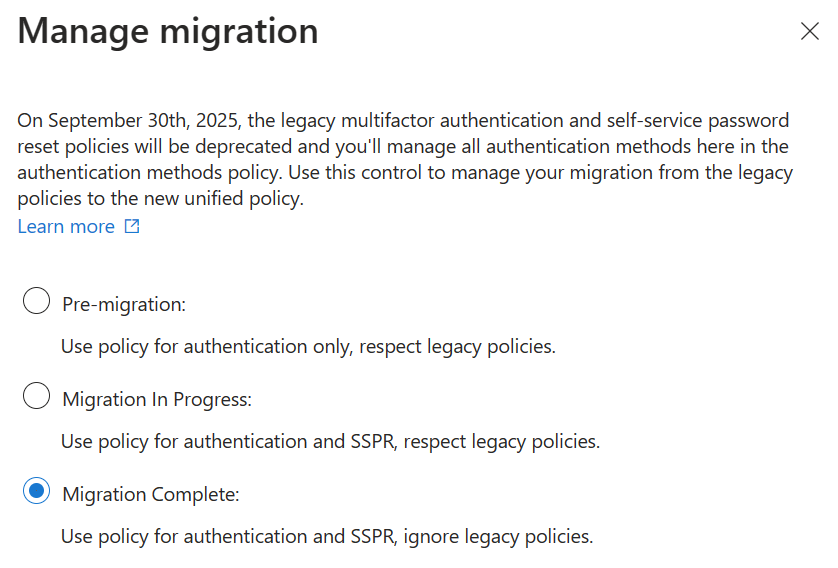
  3. Finish the Authentication methods policy migration. If your tenant is still reading legacy per-user MFA and SSPR settings, you have two sources of truth for which methods are enabled. Microsoft's wizard makes this reversible (Manage authentication methods).
  4. Start with administrators. They are the highest-value targets, the smallest population, and the people best placed to become internal champions.
  5. Block device code flow early. It is cheap to deploy in report-only mode and addresses a phishing path passkeys cannot.
  6. Plan recovery before enforcement. Every passkey rollout that stalls, stalls on "what happens when someone loses their device?"
  7. Keep humans out of the loop where possible. Push approvals and codes rely on the user spotting a fake. Phishing-resistant methods don't ask them to.

EntraPasskeyToolkit PowerShell module to help you measure your baseline

When it comes to dealing with EntraID PowerShell remains the scripting platoform of choice. Because of this here is a module to help you build out a baseline of yout environment. I have it in my GitHub account EntraPasskeyToolkit

Prerequisites

  • PowerShell 7.2 or later
  • Microsoft.Graph.Authentication 2.x (the toolkit calls Graph through Invoke-MgGraphRequest, so you don't need the full Microsoft.Graph SDK)
  • Entra ID P1 or P2 for the reporting APIs
  • A read-only role for the assessment work: Global Reader, Security Reader or Reports Reader. Don't use Global Administrator to run reports.
Install-Module Microsoft.Graph.Authentication -Scope CurrentUser
# Download or clone the EntraPasskeyToolkit folder from this series, then:
Import-Module ./EntraPasskeyToolkit/EntraPasskeyToolkit.psd1
Get-Command -Module EntraPasskeyToolkit

Least-privilege scopes by task

I recommend you use the least level of privilage as possible. Specially since I know some of you will ask an agent to execute this for you against your tenant ;)

Task Delegated scopes Typical role
Registration and posture reporting (Parts 1, 7) AuditLog.Read.All, Policy.Read.All Reports Reader / Global Reader
Passkey inventory (Part 2) UserAuthenticationMethod.Read.All, Policy.Read.All Global Reader / Authentication Administrator
Conditional Access review (Part 3) Policy.Read.All, GroupMember.Read.All Security Reader / Global Reader
Conditional Access changes (Part 3) Policy.Read.All, Policy.ReadWrite.ConditionalAccess, RoleManagement.Read.Directory Conditional Access Administrator
TAP and method removal (Part 4) UserAuthenticationMethod.ReadWrite.All Authentication Administrator / Privileged Authentication Administrator
Sign-in analytics and session revocation (Part 5) AuditLog.Read.All, User.RevokeSessions.All Security Reader / Security Operator
Privileged inventory (Part 6) RoleManagement.Read.Directory, GroupMember.Read.All, Application.Read.All Global Reader

Connect explicitly to the tenant you intend to assess. -ContextScope Process keeps the token out of the persistent cache:

$tenantId = '<your-tenant-guid>'
Connect-MgGraph -TenantId $tenantId -ContextScope Process -NoWelcome `
    -Scopes 'AuditLog.Read.All', 'Policy.Read.All'

The plumbing: paging, throttling and scope checks

Every function in the module leverages two private helpers.

  • Assert-EptGraphConnection it fails fast with a readable message if you forgot a scope. That's better than a cryptic 403 halfway through a 40,000-user report.
  • Invoke-EptGraphRequest follows @odata.nextLink, retries on 429/503 with Retry-After, and streams each item to the pipeline as it arrives. Downstream commands start working before the last page is downloaded, and memory stays flat.

Classifying methods by strength

Get-EptMethodStrength turns the method names Entra reports (mobilePhone, passKeyDeviceBound, microsoftAuthenticatorPush and so on) into four buckets: PhishingResistant, Phishable, Telephony and RecoveryOnly. It accepts pipeline input, so you can classify a list in one line.

The mapping lives in $script:EptMethodClass at the top of Registration.ps1. Microsoft adds method names as new passkey types ship (the passKey* values are recent), so review this periodically. Anything the toolkit doesn't recognize is shown as Unclassified instead of silently dropped.

Registration details, enriched

Get-EptUserRegistration wraps the userRegistrationDetails report and adds the fields you actually want: StrongestMethod, HasPhishingResistant, HasTelephony, and the list of PhishableMethods still registered.

It has two parameter sets:

  • No input: streams the whole tenant.
  • Pipeline input: accepts UPNs, object IDs, or any object with a UserPrincipalName or Id property, including the output of Get-EptPrivilegedUser

few details worth pointing out:

  • The report is keyed by object ID, so UPN input is converted into an OData $filter automatically.
  • Each user is fetched inside try/catch and failures go to the error stream with Write-Error, not throw. One deleted account in a list of 500 doesn't abort the other 499.
  • Objects carry a PSTypeName of Ept.UserRegistration, which lets Measure-EptMfaPosture insist on the right input type.

Turning rows into a posture summary

Measure-EptMfaPosture is a pipeline aggregator. It collects in process {} and emits one summary in end {}, optionally split with -GroupBy

Putting it together

# 1. Whole-tenant posture, members only
$registration = Get-EptUserRegistration -UserType member
$registration | Measure-EptMfaPosture | Format-List

# 2. Admins vs. everyone else
$registration | Measure-EptMfaPosture -GroupBy IsAdmin | Format-Table

# 3. Who depends on telephony only? These users get the blocking prompt on 1 Feb 2027.
$registration |
    Where-Object StrongestMethod -eq 'Telephony' |
    Select-Object UserPrincipalName, DisplayName, @{ n = 'Methods'; e = { $_.MethodsRegistered -join ';' } } |
    Export-Csv ./telephony-only-users.csv -NoTypeInformation

# 4. Registered methods across the tenant, most common first
$registration.MethodsRegistered | Group-Object -NoElement | Sort-Object Count -Descending

Sample output (illustrative):

Group                       : All
Users                       : 4812
MfaRegisteredPct            : 96.4
PhishingResistantPct        : 11.2
TelephonyRegisteredPct      : 71.8
TelephonyOnlyCount          : 903
NoMfaCount                  : 171
AdminsWithoutPhishResistant : 37

That shape is typical: 96% MFA looks like a win in a board report, while 11% phishing-resistant is the number that actually describes your exposure to AiTM kits.

What the policy allows

Registration is only half the story. Get-EptAuthMethodPolicy (full source in Part 2) reads the Authentication methods policy and shows which methods are enabled and for whom. It also shows the migration state and the current registration-campaign configuration:

Connect-MgGraph -TenantId $tenantId -ContextScope Process -NoWelcome -Scopes 'Policy.Read.All'

Get-EptAuthMethodPolicy |
    Format-Table Method, State, @{ n = 'Targets'; e = { $_.Targets -join ', ' } }, MigrationState, CampaignState -AutoSize

Check three things in the output:

  • MigrationState should be migrationComplete. Anything else means the legacy MFA/SSPR pages still influence which methods users can use.
  • Sms and Voice: if they are enabled for All users, everyone in scope was auto-enabled for passkeys on 1 September 2026, and will face the retirement changes.
  • CampaignState: default means Microsoft managed. Decide deliberately whether that's what you want (Part 4).

The same data in the portal

If you prefer clicking (The insanity), or want to sanity-check the script, go to Entra ID → Authentication methods → Activity. It shows the same registration and usage picture. It needs Entra ID P1/P2 and one of the reader roles, and data can lag by up to 36 hours (Authentication methods activity).

Screenshot: Microsoft Learn, "Authentication methods activity".

Users registered by authentication method

Microsoft also publishes a Log Analytics workbook for this journey, Phishing-Resistant Passwordless Deployment (aka.ms/PasswordlessWorkbook). It's worth deploying alongside the scripts if you already stream sign-in logs to Log Analytics.

Interpreting the baseline

If you see… It means… Go to
High MFA %, low phishing-resistant % Typical. Your users are protected against spray, not AiTM. Parts 2–3
Admins without phishing-resistant methods Your most valuable accounts are the most phishable. Fix first. Part 6
Many telephony-only users Blocking prompts on 1 Feb 2027 (1 Jul 2027 for Global Admins). Parts 4, 7
MigrationState not complete Two sources of truth for enabled methods. Part 7
Users with no MFA at all Bootstrap needed before enforcement. Plan TAP issuance. Part 4

Key takeaways

  • MFA is a category. Only passkeys (FIDO2), Windows Hello for Business / platform credentials and multifactor CBA are phishing-resistant.
  • AiTM proxies relay OTP, SMS and push. Device code phishing uses the real Microsoft site. Token theft happens after sign-in. Each needs its own control.
  • Microsoft's timeline is already running: passkeys became the default on 1 September 2026, and Microsoft-provided SMS/voice retires on 1 February 2027, about four months from the start of October.
  • Measure registration, policy and usage separately. The gap between them is your work plan.

Next, Part 2: how passkeys actually defeat phishing, and how to choose between device-bound and synced passkeys for each part of your workforce.

References

Tracking WMI Activity with PSGumshoe

WMI (Windows Management Instrumentation) is the Microsoft implementation of the Web-Based Enterprise Management (WBEM) and Common Information Model (CIM) standards from the Distributed Management Task Force (DMTF). This allows for a unified way to manage a group of systems by administrators allowing them to get information about the system, its current state and to execute actions. Because of this many attackers leverage this for enumeration, lateral movement, and persistence. Defenders and security vendors leverage it heavily also, in fact, most vulnerability scanners would not be able to do a lot of what they do on windows hosts without it.

I wrote the PSGumshoe PowerShell module initially with a group of good friends of mine to help with the job of performing threat hunting and incident response. I maintain the module as my personal tool for working in my research of finding IOCs for the tools I write in my day job for the Red Team and the Pentest Team, also when I help out in some of the incident response engagements.

I would like to share some of the new functions I added to the module for the purpose of tracking some of the WMI activities that attackers may perform once they gained a foothold on the system.

Read More

Sysmon for Linux PowerShell Module

Sysmon has been a great tool to enhance logging in Windows for many year allowing well organized teams to cover many gaps in their log and even improve their capabilities at detecting all kinds of attacks. Microsoft released a version of Sysmon for Linux to provide the same type of value to those defending Linux systems. Logs are saved in to Syslog as single line XML blobs that can be ingested and parsed by SIEM products. To aid with extracting the Sysmon specific events from syslog I wrote the SysmonLinux.Util module. The module can parse one or more Syslog files even GZip files archived by LogRotate from a Linux system and allow for the search of specific events that meet a given criteria. The module can be use also for aiding in the generation of filter rules based on the resulting objects of queries performed against the logs, greatly speeding the creation and tunning of Sysmon configuration files.

Install

The recommended method for installing the module is to install the module from the PowerShell Gallery, https://www.powershellgallery.com/packages/SysmonLinux.Util The command to install the module is

Install-Module -Name SysmonLinux.Util -Force

The module source code can also be downloaded from GitHub https://github.com/darkoperator/SysmonLinux.Util/

Exploring the Module

Once the module is installed we can take a look at the functions made available for working with tge Get-Command cmdlet in PowerShell.

PS /home/carlos> Get-Command -Module sysmonlinux.util                                                                                              
CommandType     Name                                               Version    Source
-----------     ----                                               -------    ------
Function        ConvertTo-SysmonRule                               0.0.3      SysmonLinux.Util
Function        Get-SysmonLinuxConfigChange                        0.0.3      SysmonLinux.Util
Function        Get-SysmonLinuxEvent                               0.0.3      SysmonLinux.Util
Function        Get-SysmonLinuxFileCreate                          0.0.3      SysmonLinux.Util
Function        Get-SysmonLinuxFileDelete                          0.0.3      SysmonLinux.Util
Function        Get-SysmonLinuxNetworkConnect                      0.0.3      SysmonLinux.Util
Function        Get-SysmonLinuxProcessCreate                       0.0.3      SysmonLinux.Util
Function        Get-SysmonLinuxProcessTerminate                    0.0.3      SysmonLinux.Util
Function        Get-SysmonLinuxRawAccess                           0.0.3      SysmonLinux.Util
Function        Get-SysmonLinuxState                               0.0.3      SysmonLinux.Util

The functions available at the moment of this is written are described bellow in the table.

Function Description
ConvertTo-SysmonRule Takes resulting objects from the other module function and turns them in to Sysmon Rules
Get-SysmonLinuxConfigChange Gets Sysmon configuration change events from one or more syslog files.
Get-SysmonLinuxEvent Gets any Syslon event allowing filtering either by Image and ProcessGUID from one or more syslog files.
Get-SysmonLinuxFileCreate Gets Sysmon File Create events from one or more syslog files.
Get-SysmonLinuxFileDelete Gets Sysmon File Delete events from one or more syslog files.
Get-SysmonLinuxNetworkConnect Gets Sysmon Network Connect events from one or more syslog files.
Get-SysmonLinuxProcessCreate Gets Sysmon Process Create events from one or more syslog files.
Get-SysmonLinuxProcessTerminate Gets Sysmon Process Terminate events from one or more syslog files.
Get-SysmonLinuxRawAccess Gets Sysmon Raw Access events from one or more syslog files.
Get-SysmonLinuxState Gets Sysmon Linux State events from one or more syslog files.

The Get-Help cmdlet or its alias help can be used to look at the parameters and their details for each of the functions. It will also show which parameters allow for wildcards so as to make searching for specific events much easier.

PS /home/carlos> help Get-SysmonLinuxEvent

NAME
    Get-SysmonLinuxEvent

SYNOPSIS
    Gets one or more Sysmon for Linux event types from Syslog logs.


SYNTAX
    Get-SysmonLinuxEvent -EventType <String[]> [[-SyslogFile] <String[]>] [-Image <String[]>] [-User 
    <String[]>] [<CommonParameters>]

    Get-SysmonLinuxEvent -EventType <String[]> [[-SyslogFile] <String[]>] [-ProcessGuid <String[]>] 
    [-Image <String[]>] [-User <String[]>] [<CommonParameters>]


DESCRIPTION
    Gets one or more Sysmon for Linux event types from Syslog logs. Allows for filtering by ProcessGUID 
    and User.


PARAMETERS
    -EventType <String[]>
        Event type to pull from Syslog log file.

        Required?                    true
        Position?                    named
        Default value                
        Accept pipeline input?       false
        Accept wildcard characters?  false

    -SyslogFile <String[]>
        Specifies a path to one or more locations.

        Required?                    false
        Position?                    1
        Default value                @("/var/log/syslog")
        Accept pipeline input?       true (ByValue, ByPropertyName)
        Accept wildcard characters?  false

    -ProcessGuid <String[]>
        ProcessGuid to search for a given event type, ParentProcessGuid will also be matched to this 
        value.

        Required?                    false
        Position?                    named
        Default value                
        Accept pipeline input?       false
        Accept wildcard characters?  false

    -Image <String[]>
        Image to search for a given event type.The '*' wildcard is supported for matching.

        Required?                    false
        Position?                    named
        Default value                
        Accept pipeline input?       false
        Accept wildcard characters?  true

    -User <String[]>
        User to seach for a given event type.

        Required?                    false
        Position?                    named
        Default value                
        Accept pipeline input?       false
        Accept wildcard characters?  false

    <CommonParameters>
        This cmdlet supports the common parameters: Verbose, Debug,
        ErrorAction, ErrorVariable, WarningAction, WarningVariable,
        OutBuffer, PipelineVariable, and OutVariable. For more information, see
        about_CommonParameters (https://go.microsoft.com/fwlink/?LinkID=113216). 

INPUTS
    System.IO.FileInfo


OUTPUTS
    System.Management.Automation.PSCustomObject


NOTES


        General notes

    -------------------------- EXAMPLE 1 --------------------------

    PS />Get-SysmonLinuxEvent -EventType Any -ProcessGuid "{de9527a5-6a3f-616f-a52f-d98154560000}"

    EventId           : 1
    Version           : 5
    EventType         : ProcessCreate
    Computer          : ubuntu
    EventRecordID     : 35705
    RuleName          : -
    UtcTime           : 2021-10-20 01:00:47.600
    ProcessGuid       : {de9527a5-6a3f-616f-a52f-d98154560000}
    ProcessId         : 2356
    Image             : /usr/sbin/dumpe2fs
    FileVersion       : -
    Description       : -
    Product           : -
    Company           : -
    OriginalFileName  : -
    CommandLine       : dumpe2fs -h /dev/sda5
    CurrentDirectory  : /
    User              : root
    LogonGuid         : {de9527a5-0000-0000-0000-000000000000}
    LogonId           : 0
    TerminalSessionId : 4294967295
    IntegrityLevel    : no level
    Hashes            : -
    ParentProcessGuid : {00000000-0000-0000-0000-000000000000}
    ParentProcessId   : 874
    ParentImage       : -
    ParentCommandLine : -
    ParentUser        : -

    EventId       : 9
    Version       : 2
    EventType     : RawAccessRead
    Computer      : ubuntu
    EventRecordID : 35706
    RuleName      : -
    UtcTime       : 2021-10-20 01:00:47.619
    ProcessGuid   : {de9527a5-6a3f-616f-a52f-d98154560000}
    ProcessId     : 2356
    Image         : /usr/sbin/dumpe2fs
    Device        : /dev/sda5
    User          : root

    EventId       : 5
    Version       : 3
    EventType     : ProcessTerminate
    Computer      : ubuntu
    EventRecordID : 35707
    RuleName      : -
    UtcTime       : 2021-10-20 01:00:47.620
    ProcessGuid   : {de9527a5-6a3f-616f-a52f-d98154560000}
    ProcessId     : 2356
    Image         : /usr/sbin/dumpe2fs
    User          : root

    Find all events that match the specified ProcessGuid.


RELATED LINKS

Leveraging the Functions

The functions are divided in 2 groups, all of the functions minus ConvertTo-SysmonRule are meant for getting from Syslog log files the events for their type and allow to target certain events by filtering based on their properties. Each function returns the log entry as an object, this allows for the use of regular built in PowerShell cmdlets to further filter and process the resulting log entry objects. Bellow we use the Select-Object cmdlet to select only some of the properties of the resulting objects and from the results only have unique entries.

PS /home/carlos> Get-SysmonLinuxNetworkConnect -Image /usr/lib/systemd/systemd-resolved | select destinationip,image -unique                       

DestinationIp Image
------------- -----
10.101.101.2  /usr/lib/systemd/systemd-resolved
127.0.0.1     /usr/lib/systemd/systemd-resolved
127.0.0.53    /usr/lib/systemd/systemd-resolved

By default the functions will open the /var/log/syslog file, a list of files can be passed to the -SyslogFile parameter or passed to the filtering functions via the pipeline. On most distributions of linux the lograted daemon runs on a schedule and archives the syslog log file in to a Gzip compressed file. The SysmonLinux.Util module can handle this files by decompressing in to the temp folder the files and processing each file if they have the .gz extension.

PS /home/carlos> ls /var/log/syslog* | Get-SysmonLinuxRawAccess | select image,user -Unique | Format-List       
Image : /usr/sbin/grub-probe
User  : root

Image : /usr/sbin/blkid
User  : root

Image : /usr/lib/systemd/systemd-logind
User  : root

Image : /usr/sbin/dumpe2fs
User  : root

Image : /usr/lib/systemd/system-generators/systemd-gpt-auto-generator
User  : root

Image : /usr/bin/mount
User  : root

Image : /usr/lib/systemd/systemd-udevd
User  : root

Image : /usr/lib/udev/scsi_id
User  : root

Image : /usr/lib/udev/cdrom_id
User  : root

Image : /usr/lib/udev/ata_id
User  : root

Image : /usr/lib/udisks2/udisksd
User  : root

The ConvertTo-SysmonRule function is the only function whose purpose is not the extraction of log entries from syslog files but for turning the resulting objects in to rules that can then be used for exclude or include rule groups to further tune configuration files.

PS /home/carlos> ls /var/log/syslog* | Get-SysmonLinuxRawAccess | select image,user -Unique | ConvertTo-SysmonRule
<Rule groupRelation="and">
  <Image condition='is'>/usr/sbin/grub-probe</Image>
  <User condition='is'>root</User>
</Rule>
<Rule groupRelation="and">
  <Image condition='is'>/usr/sbin/blkid</Image>
  <User condition='is'>root</User>
</Rule>
<Rule groupRelation="and">
  <Image condition='is'>/usr/lib/systemd/systemd-logind</Image>
  <User condition='is'>root</User>
</Rule>
<Rule groupRelation="and">
  <Image condition='is'>/usr/sbin/dumpe2fs</Image>
  <User condition='is'>root</User>
</Rule>
<Rule groupRelation="and">
  <Image condition='is'>/usr/lib/systemd/system-generators/systemd-gpt-auto-generator</Image>
  <User condition='is'>root</User>
</Rule>
<Rule groupRelation="and">
  <Image condition='is'>/usr/bin/mount</Image>
  <User condition='is'>root</User>
</Rule>
<Rule groupRelation="and">
  <Image condition='is'>/usr/lib/systemd/systemd-udevd</Image>
  <User condition='is'>root</User>
</Rule>
<Rule groupRelation="and">
  <Image condition='is'>/usr/lib/udev/scsi_id</Image>
  <User condition='is'>root</User>
</Rule>
<Rule groupRelation="and">
  <Image condition='is'>/usr/lib/udev/cdrom_id</Image>
  <User condition='is'>root</User>
</Rule>
<Rule groupRelation="and">
  <Image condition='is'>/usr/lib/udev/ata_id</Image>
  <User condition='is'>root</User>
</Rule>
<Rule groupRelation="and">
  <Image condition='is'>/usr/lib/udisks2/udisksd</Image>
  <User condition='is'>root</User>
</Rule>

I do hope that others find the module useful and will leverage it when working with Sysmon for Linux.